Share files
You can share files and folders from Personal in your Knowledge with other people in your organization. They get read-only access and can use the files in their own chats and agents.
This page covers files. To share an agent, see Agents.
Share a file
- Open Knowledge, go to Personal and find the file or folder.
- Select ⋮ next to it, then Manage access. Files in Organization don't have Manage access.
- Choose who gets access: named people, or everyone in your organization (see the share types below).
To share several files from Personal at once, select their checkboxes and select Share in the selection bar. Every selected file is shared.
The people picker lists only active users. Someone who was invited but has not signed in yet can't be found: ask them to sign in once, then share again.
Share types
A share is one of two types:
| Type | Who gets access |
|---|---|
| Restricted | Only the people you name. |
| Everyone | Everyone in your organization, including people you did not name. |
If you switch a file from Everyone back to Restricted, people who had access only through Everyone lose it. People you named directly keep their access.
What people you share with can do
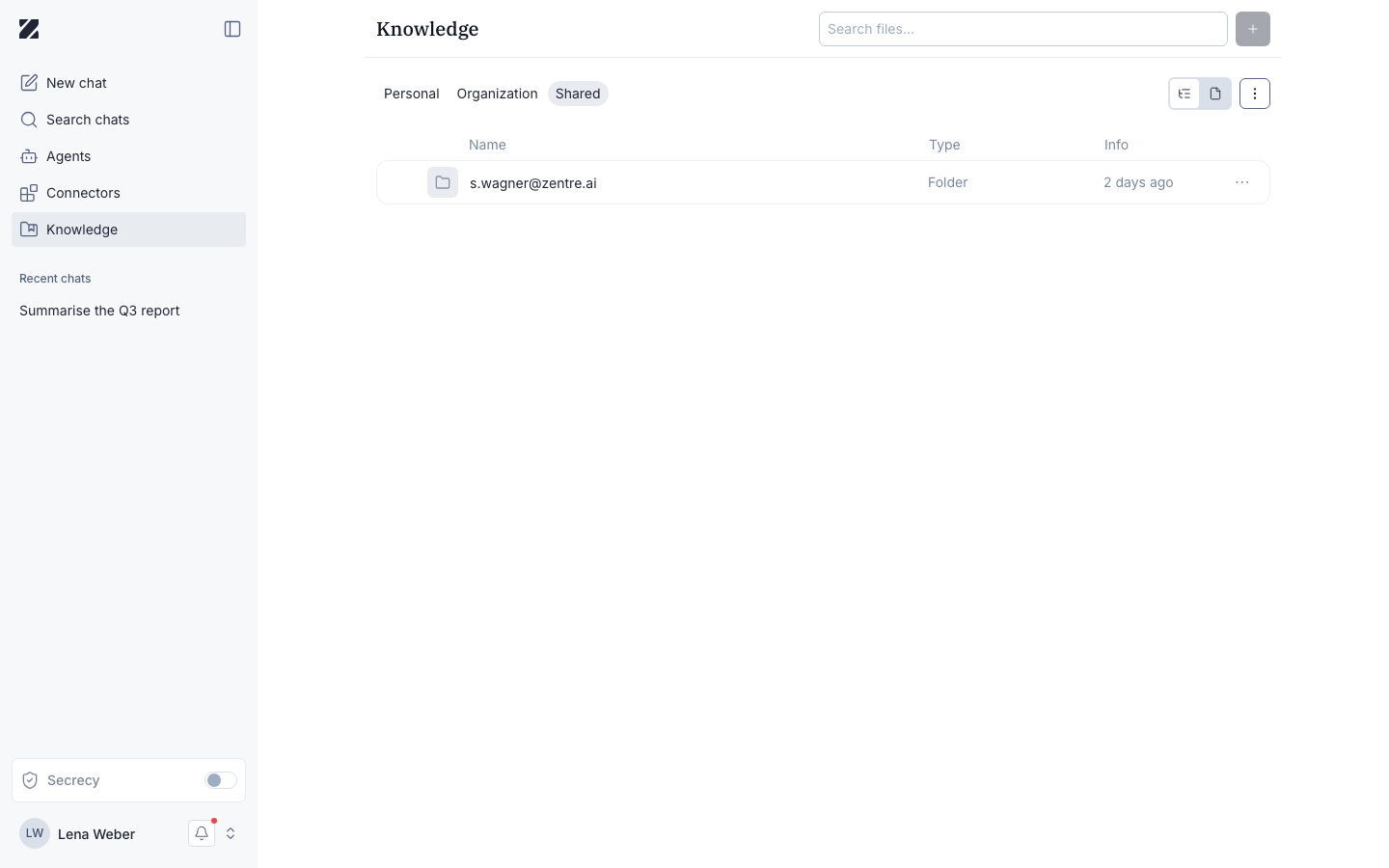
Shared files are read-only. The people you share with find them under Shared, in a folder named after your email address. They can Download a file and open its Details.
They can also use your file in answers: chat searches the files shared with them, and they can attach the file to their agents.
When sharing ends
- You revoke the share. The person loses access, and the file is removed from every agent they attached it to.
- You delete the file. Its shares are removed too.
- In §203 mode, files can be shared only with users who also hold §203. If a user loses §203, the shares they received are removed. See §203 Professional Secrecy Mode.
You stay the owner of your file: the owner can't be removed from it.
Permissions & roles
- Audience
- All users
- Applies to
- Files you share and files shared with you
A file's owner controls who has access and always keeps it. Everyone the file is shared with gets read-only access: Download and Details.
See Roles and permissions for every role at a glance.
Frequently asked questions
Why can't I find a colleague in the people picker?
The picker lists only active users. An invited user appears after they sign in for the first time.
Can I share a folder?
Yes, in Personal: Manage access is available there for folders as well as for files.
Where do files shared with me appear?
In Knowledge, under Shared, in a folder named after the email address of the person who shared them.
Can I edit a file someone shared with me?
No. Shared files are read-only. Download a copy if you need to work on it.
Related
Was this page helpful?