§203 Professional Secrecy Mode
§203 Professional Secrecy Mode is a separate working mode for professions bound by professional secrecy under Section 203 of the German Criminal Code (StGB). It keeps §203 content apart from your normal work and limits Zentre AI to approved sovereign models, with no web search, connectors or image generation.
This page explains who can use the mode, how an organization gets access, and what changes for you once you work in §203 mode.
Who it is for
The mode is meant for professionals who must keep client or patient information confidential. When an organization requests access, it selects one or more of these professions:
- Auditor (WP)
- Lawyer (RA)
- Health professions
- Tax advisor (StB)
Getting access
§203 is enabled per organization, after a review:
- A Super Admin opens Organisation › General in the admin console. In the Professional Secrecy Mode (in Germany: § 203 mode) card, they select one or more Professions, then Raise request.
- Email the signed Professional Secrecy Mode agreements to legal@ezto.io to complete the request.
- The request goes to review: enablement requires platform-owner approval. While it waits, its status is Pending review.
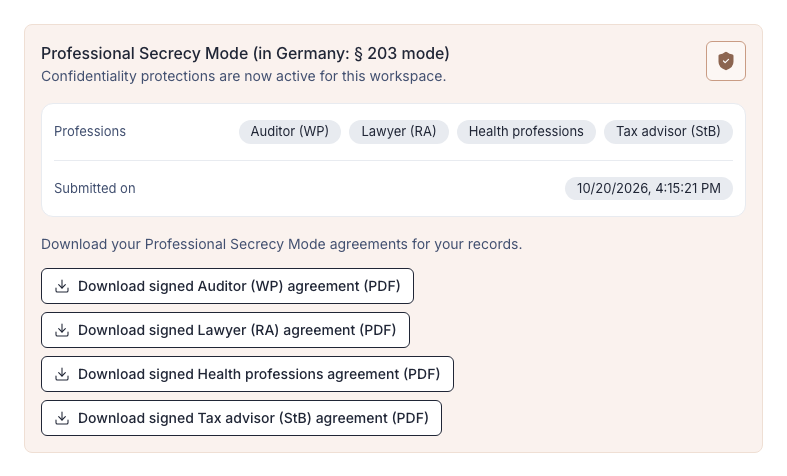
- When the request is approved, §203 is enabled. The card then says "Confidentiality protections are now active for this workspace." and shows the approved professions, the Submitted on date and the signed agreements to download. If the request is rejected, its status is Rejected.
- A rejected request can be raised again.
These rules apply to access:
- Only Super Admins can request §203. An Admin cannot request, enable or revoke §203 for anyone, including themselves.
- Access can be revoked later, for the whole organization or for a single user.
- The primary §203 Super Admin cannot be disabled by another Super Admin.
- The primary §203 Super Admin cannot disable their own §203 access.
Legal instruction (Belehrung)
The first time you turn on the Secrecy switch, Zentre AI shows you the legal instruction (Belehrung) in the Professional Secrecy Mode instruction dialog. Every user must read and accept it.
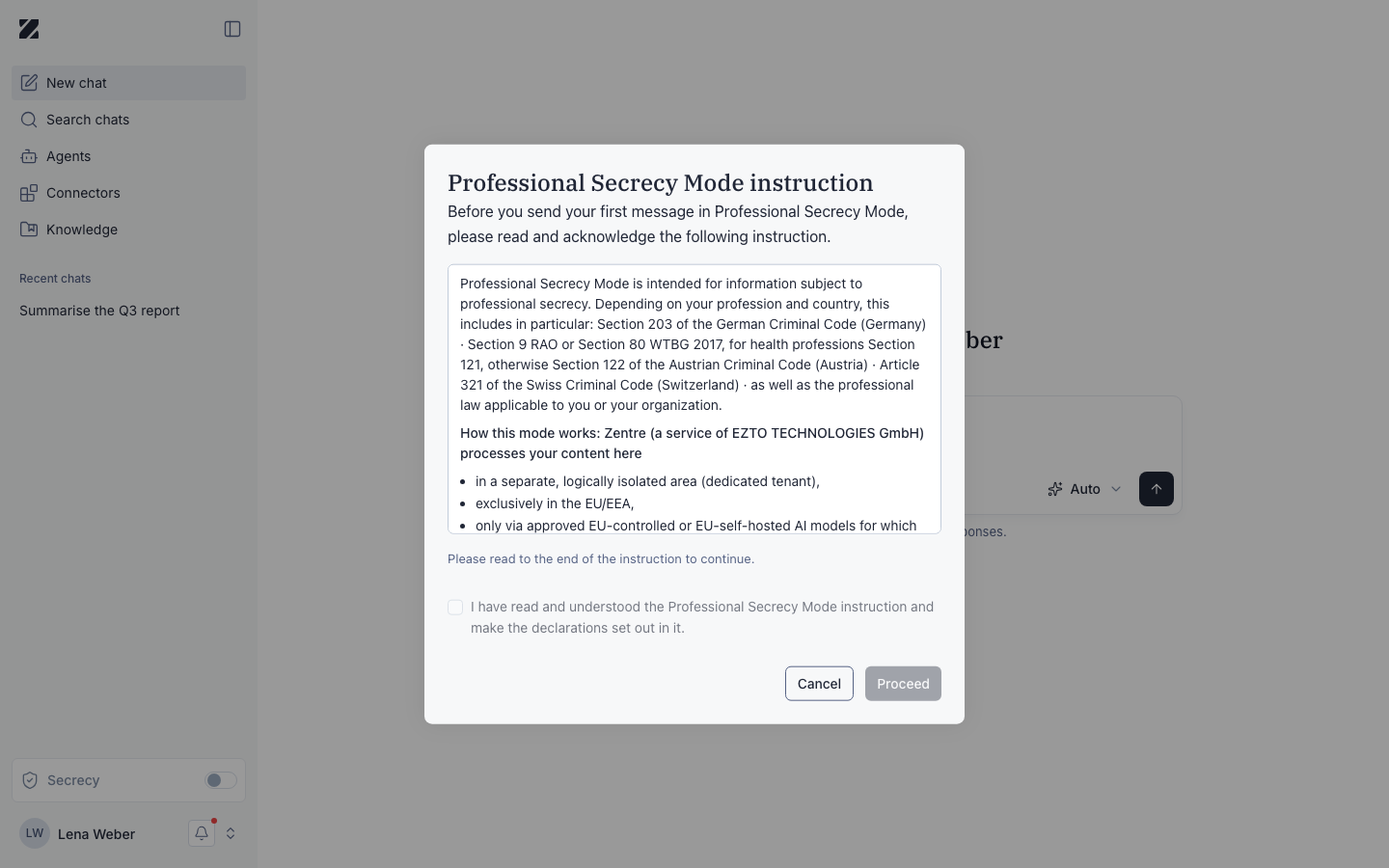
- Read the instruction to the end.
- Tick the confirmation checkbox. It becomes available only once you have read to the end.
- Select Proceed.
Your acknowledgment is logged with your user ID, a timestamp and the instruction version. Administrators can see it.
Until you accept it, you cannot create a §203 chat or a §203 agent.
The instruction also states that §203 data is processed only in the EU/EEA.
Switching between Normal and §203 mode
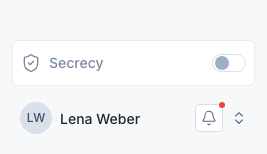
If you hold §203 access, you switch between Normal mode and §203 mode with the Secrecy switch at the bottom of the chat sidebar: turned on, you work in §203 mode; turned off, in Normal mode. The first time you turn it on, the legal instruction opens. Each mode has its own chats, agents, Knowledge and attachments.
Normal mode
Your everyday chats, agents and Knowledge. §203 chats are not listed here.
§203 mode
Your §203 chats, agents and Knowledge. Normal chats are not listed here.
When you switch an agent between Normal and §203 mode, it is saved in the mode you selected.
Restricted models
In §203 mode, Zentre AI offers only approved sovereign models, and the model picker shows only those models. A request to use a model that is not approved for §203 is refused.
In auto mode, the router also picks only §203-compliant models. A prompt cannot talk it into using a different model.
What is turned off
To keep §203 content inside Zentre AI, these features are turned off in §203 mode:
- Web search
- Connectors
- Image generation
- Agents that use web search or connectors
Conversation titles in §203 mode never contain the text of your prompt.
Separate Knowledge
§203 files are kept in an isolated Knowledge store, with its own Personal, Organization and Shared scopes.
- A §203 file is not visible in Normal Knowledge, and a Normal file is not visible in §203 Knowledge.
- The same file name can exist in both stores.
- A Normal agent cannot be given a §203 file.
Sharing in §203 mode
You can share §203 files and agents, with one limit:
- You can share only with users who also hold §203 access.
- If a user loses §203 access, the shares they received are removed.
When access is revoked
When §203 access is revoked for you or for your organization, you lose access to your §203 content.
The §203 files and agents that others shared with you are removed from your account.
When an administrator revokes a user's §203 access, the user's §203 Knowledge data is purged. The app warns: "Revoking purges this user's Professional Secrecy Mode knowledge-base data." See Users.
Deleting a §203 chat
Deleting a §203 chat also deletes its Knowledge content and its stored files.
Permissions & roles
- Audience
- Super Admins, Admins and users with §203 access
- Applies to
- §203 access for the organization and its users
§203 access is managed by Super Admins only:
- Super Admin: requests §203 for the organization and manages §203 access.
- Admin: cannot request, enable or revoke §203 for anyone, including themselves.
- Users with §203 access: switch between Normal and §203 mode after accepting the legal instruction.
- Primary §203 administrator: the Super Admin who raised the organization's §203 request. Other Super Admins cannot act as the primary administrator. Only the primary administrator can turn a user's §203 access on or off, on the user's detail page in Users. Their own access ends only when §203 access is revoked for the whole organization.
- For the rules on deleting a user with §203 access, see Users.
See Roles and permissions for every role at a glance.
Frequently asked questions
Why can't I create a §203 chat?
You must accept the legal instruction (Belehrung) first. Until you do, §203 chats and agents cannot be created.
Where are my chats from Normal mode?
Each mode lists only its own chats. Switch back to Normal mode to see your Normal chats.
Why is web search not available?
Web search, connectors and image generation are turned off in §203 mode, so §203 content stays inside Zentre AI.
Can I share a §203 file with a colleague?
Yes, if your colleague also holds §203 access. You cannot share §203 files or agents with other users.
Can an Admin request §203 for our organization?
No. Only a Super Admin can request or manage §203.
Related
Was this page helpful?