Knowledge
Knowledge is your file store. The files you keep here can be used as context by the AI, so it can answer using your own documents. You organize files by scope and find them with search.
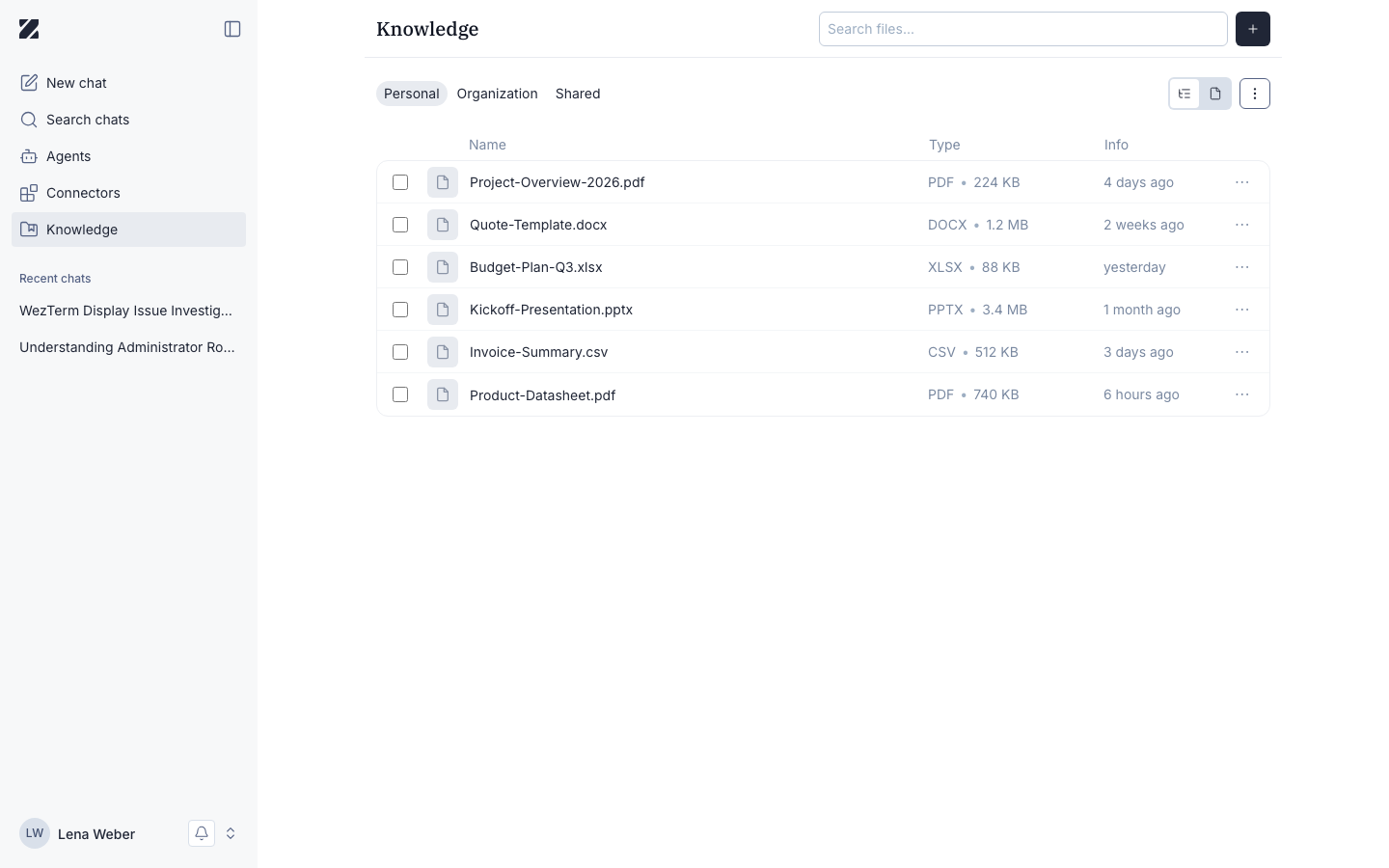
The Knowledge page has a search box (Search files), a + button to upload, scope tabs (Personal, Organization, and Shared), and a file table with the columns Name, Type, and Info.
What you can do here
Choose a scope
Switch between Personal, Organization, and Shared.
Upload files
Select + to add a file to the current scope.
Search files
Use Search files to find a file by name.
Use files in answers
Attach files in chat or give them to an agent, so the AI answers from your documents.
Share files
Give named people or your whole organization read-only access.
Organize files
Create folders, rename files, and download, share or delete several files at once.
Scopes
Personal holds files only you can see. Organization holds files available to everyone in your organization. Shared holds files shared with a specific group or person. Choose the scope before you upload, so each file lands in the right place.
Files that others share with you appear under Shared, in a folder named after the email address of the person who shared them. They are read-only for you: you can Download them and open their Details. See Share files.
Everyone can add files to Personal. Only Super Admins and Admins can add files to Organization. Other users see a disabled upload button with a tooltip that explains why.
Using Knowledge
- Open the Knowledge page.
- Choose where to add the file: Personal, or Organization if your role allows it.
- Select + (Add), then Upload files, and choose one or more files.
- Wait until the status next to the file changes to the time it was added, for example just now. The file is then ready to use.
- Use Search files to find a file later.
You can also drag files from your computer and drop them onto the page to upload them.
To create a folder, select + (Add), then Create folder, and enter a name. Folder names follow the naming rules below.
Supported file types
You can upload these file types to Knowledge:
| Group | File types |
|---|---|
| Documents | .pdf .docx .doc .txt .md .rtf .html .htm .xml |
| Spreadsheets and data | .xlsx .xls .csv .json .jsonl .yaml .yml |
| Presentations | .pptx .ppt |
| Code | .py .java .js .ts .c .cpp .css .sql |
| Images | .jpg .jpeg .png .gif .webp |
| Archives | .zip .tar .gz .tgz |
Video files can't be uploaded, even though the Type filter offers Videos.
Executables and other file types are refused with the message "This file type can't be added to the knowledge base."
Scanned PDFs are supported: Zentre extracts their text (OCR), so their content can be searched and used in answers.
Images are searchable only for the text they contain: Zentre extracts it with OCR, as for scanned PDFs. The picture itself is not described by AI.
A file that is too large for Knowledge is refused with the message "This file is larger than the knowledge base allows."
The maximum size is 100 MB per file. The limit applies to each file, also when you upload several files at once.
Zentre unpacks an archive when you upload it. A file inside the archive that is larger than 100 MB is skipped ("Exceeds 100 MB limit"), and an archive that holds more than 500 MB of uncompressed data is refused. Zentre lists the skipped files and the reason for each.
Long text pasted into chat
When you paste more than 5,000 characters into a chat message, Zentre turns the text into a file and adds it to your Knowledge automatically.
Chat attachments and Knowledge
Files you attach to a chat message and files you upload to Knowledge accept different file types. If you attach several files in chat at once and some of them are Office files (for example .docx), the Office files are skipped and the other supported files are kept. To have the AI work with an Office file, upload it to Knowledge.
For the file types and limits of chat attachments, see Attachments on the Chat page.
Storage
Knowledge files count towards your organization's Knowledge storage. During the trial, the organization has 0.25 GB. Super Admins and Billing Owners see used and total storage under Knowledge storage on the Billing page.
On a paid plan, the included storage depends on the number of seats: each seat adds storage, and the whole organization shares it as one pool. Storage packages you buy are added to the same pool.
When the storage is full, new uploads are refused with the error KB_QUOTA_EXCEEDED.
The upload then shows "Knowledge base storage quota exceeded."
To free space, delete files you no longer need. For more storage, ask a Super Admin or Billing Owner: they can select Manage storage on the Billing page or upgrade the plan.
On the Billing page, the Knowledge storage card shows the used and the total storage and the share that is used. Its Manage storage button opens a page where a Super Admin or Billing Owner can buy additional storage.
When storage runs low, the admin console shows Storage almost full. When usage exceeds the plan limit, it shows Storage limit exceeded: uploads and access to Knowledge are blocked until additional storage is purchased.
Upload and processing status
A new file appears in the list straight away. While Zentre prepares it, the file shows a status:
- Scanning… — a security check for viruses.
- Processing… — Zentre prepares the file's content for search and answers.
- Queued… — the file waits for processing capacity. A file can move from Processing… back to Queued… while it waits. That is normal.
- When the file is ready, the status changes to the time it was added, for example just now.
A small file is usually ready in 15 to 30 seconds.
While a file is processing, its row has no checkbox and no ⋮ menu. You can select, share or delete it once it is ready.
Known issue: empty folders currently show Processing…, although there is nothing to process.
When processing fails
If Zentre cannot add or prepare a file, its status turns red and shows one of three labels. Hover over the status to see the reason.
- Rejected (virus) — the virus scan rejected the file.
- Indexing failed — the file's content could not be indexed, so it is not used for search and answers.
- Failed — processing failed. This row has no Retry or Dismiss link.
To fix a file with Failed, delete it from its ⋮ menu and upload it again.
On a row with Indexing failed or Rejected (virus), text links take the place of the ⋮ menu:
- Retry — only on Indexing failed, and only when the file can be indexed again. Zentre restarts indexing and shows "Indexing restarted", or "Could not restart indexing".
- Delete — only on Indexing failed, and only if you may delete the file. It deletes the file.
- Dismiss — on both. It only clears the error: a file with Indexing failed is still not indexed. To fix it, retry, upload the file again or delete it.
If the upload itself fails, before the virus scan, the upload tray at the bottom of the page shows "Upload failed". Select Try again to upload the file again, or Dismiss to close the message.
A file stays queued
A queued file usually continues on its own, so wait for it to finish. A queued row has no option to cancel or delete the upload at the moment.
Uploading a file with the same name
While a file is still processing, another upload with the same name is refused with the message "An earlier upload of a file with this name is still being processed. Try again once it finishes." Wait until the first file is ready, then upload again.
Replace a file
To update a file, upload the new version again and choose to replace the existing file. Zentre swaps in the new version, and chats then answer from the new content.
There is no Replace item in a file's ⋮ menu. Zentre offers it when you upload a file, with + (Add) › Upload files or by drag and drop, that has the same name as a file in the target folder. It then asks Replace existing file?
The current version is kept until the new upload passes the virus scan. Then the file is replaced and the new version is indexed. Select Replace to go ahead, or Cancel to keep the existing file.
The file keeps its shares: everyone it was shared with keeps access to the new version.
Replacing a file cannot be undone.
If you may not change the existing file, the upload is refused with "A file with this name exists but you do not have permission to replace it." Upload the file under a different name instead.
Views and filters
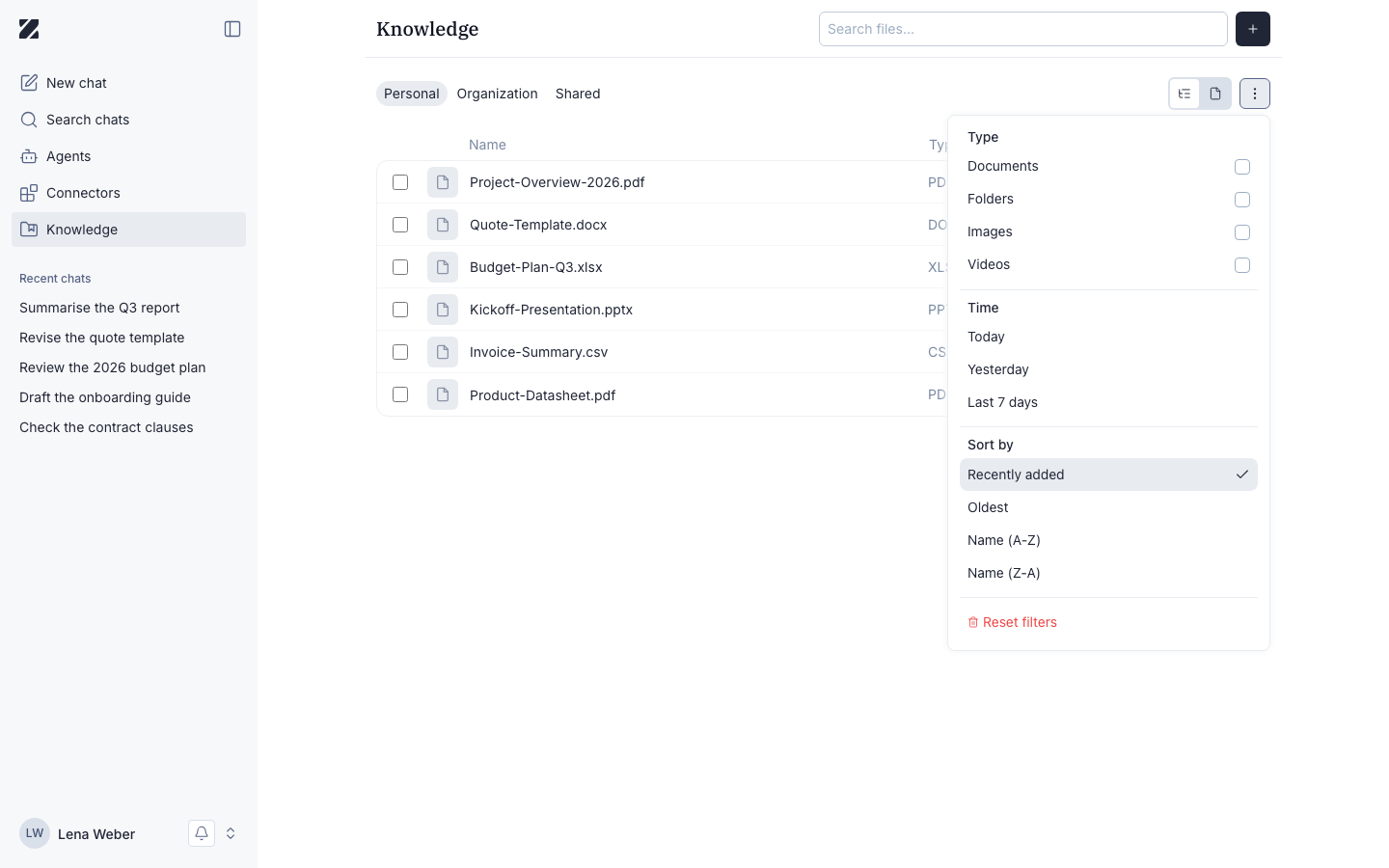
Search files matches file names, not file content, and searches only the current folder, not its subfolders. Next to the upload button, two view buttons switch between List view, which shows folders and files, and a flat list that shows only files, without folders. A third ⋮ (more actions) button opens a menu with:
- Type — filter by Documents, Folders, Images, or Videos.
- Time — filter by Today, Yesterday, or Last 7 days.
- Sort by — Recently added, Oldest, Name (A-Z), or Name (Z-A).
- Reset filters — clear all active filters and sorting.
The Videos filter is offered, but video files can't be uploaded to Knowledge.
File actions
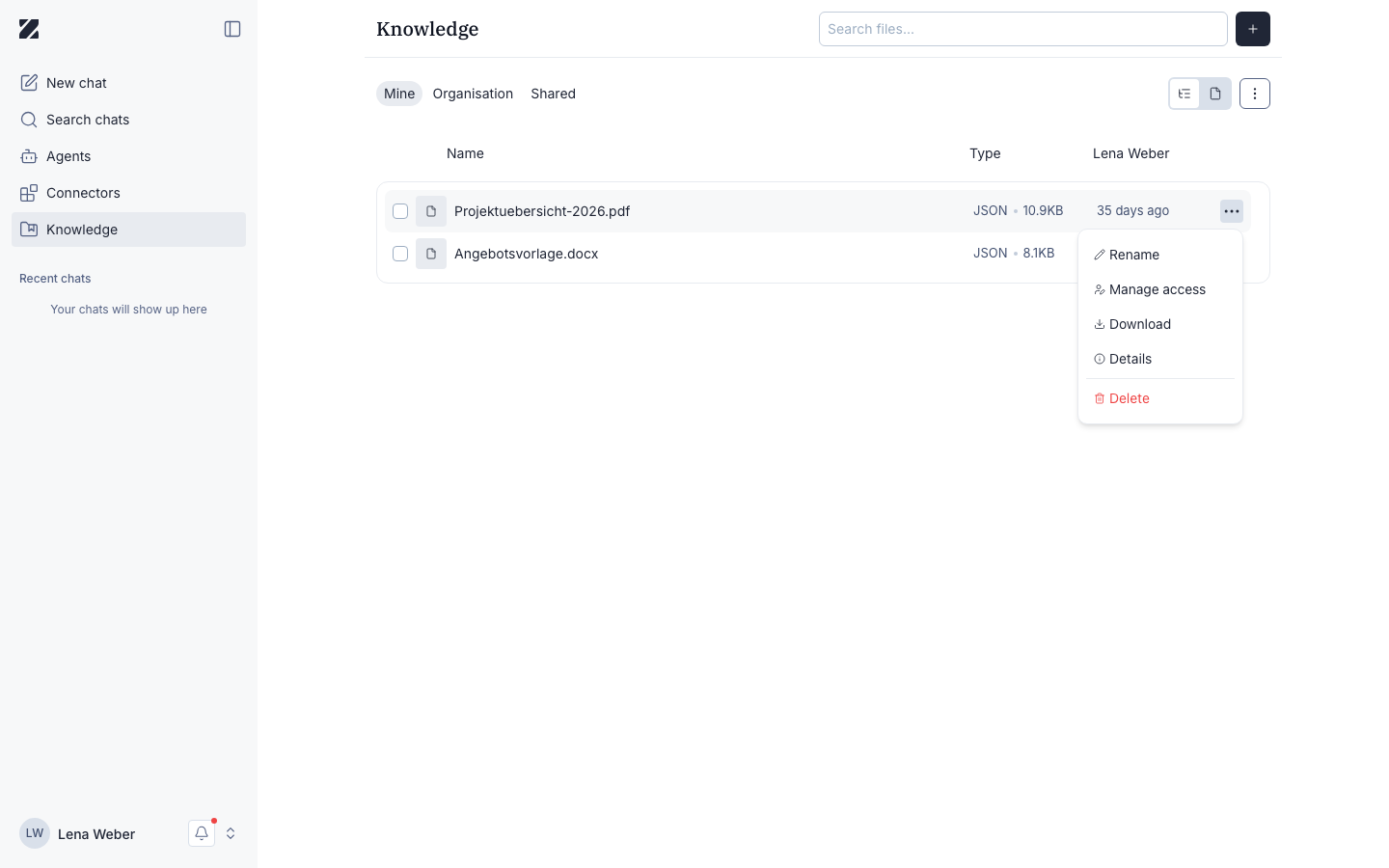
In Personal, each file that is ready has a ⋮ menu with:
- Rename — change the file's name.
- Manage access — share the file or folder with named people or with your whole organization, and see which agents it is assigned to. See Share files.
- Download — save a copy of the file.
- Details — see file information, permissions, and activity, such as who uploaded it, its size, when it was modified, and who has access.
- Delete — permanently delete the file and its access permissions.
In Organization, Super Admins and Admins can also choose Rename. Members and Billing Owners cannot rename Organization files. In Shared, files have only Download and Details.
To work on several files at once, select their checkboxes. A selection bar appears with Download, Share and Delete for all selected files.
Naming rules
- Names are case-sensitive:
Report.pdfandreport.pdfare different names. - Folder names may contain letters, digits, spaces, dots (
.), underscores (_) and hyphens (-). Other characters, such as&,#,+,/orü, are refused with "Validation failed". - File names may contain
&. - When you rename a file, you can't change its extension. Zentre shows "Changing the file format is not allowed".
How the AI uses your files
There are three ways to get your files into an answer:
- Attach a file in chat. Select + next to the prompt box and add the file to your message. See Chat.
- Give an agent Knowledge. Add files when you build an agent, and the agent can use them when it answers. See Agents.
- Ask a question in chat. Zentre searches the Knowledge you have access to: your Personal files, the Organization files and the files shared with you.
For example, if your travel policy is stored in Knowledge, ask "What does our travel policy say about hotel costs?" and the answer draws on that file.
The AI model must support Knowledge and tools to use your files, and Zentre checks this for the selected model.
When you attach Knowledge to an agent, Zentre automatically selects a model and mode that support it.
When files are deleted, unshared or handed over
- Deleting a file removes it from search and from every agent that holds it.
- Revoking a share removes the file from the agents the other person attached it to. See Share files.
- When a user leaves your organization, their Organization files are transferred to an admin and stay searchable.
Permissions & roles
- Audience
- All users
- Applies to
- Adding and seeing files in each scope
| Scope | Who can add files | Who can see the files |
|---|---|---|
| Personal | Everyone | Only you |
| Organization | Super Admins and Admins | Everyone in your organization |
| Shared | Files appear here when someone shares them with you | The people a file is shared with (read-only) |
Users with the Billing Owner role have the same Knowledge rights as Members.
See Roles and permissions for every role at a glance.
Frequently asked questions
Who can see Organization files?
Everyone in your organization can see files in the Organization scope.
Who can see Shared files?
Only the people or group a file is shared with can see files in the Shared scope.
Who can see files in Personal?
Only you. Files in the Personal scope are private to your account.
How do I find a specific file?
Use Search files at the top of the page. It matches file names, not content, and searches only the folder you are in, not its subfolders. To find a file in a subfolder, open that folder first.
Who can rename an Organization file?
Super Admins and Admins can rename Organization files. Members and Billing Owners cannot.
Can I cancel a queued upload?
Not at the moment: a queued row has no cancel or delete option. Wait for the file to finish.
Related
Was this page helpful?