Getting started
This page takes you from signup to a working team: create your account, set up your workspace, get your first answer, add your own files, create an agent and invite your colleagues. Each step links to the page with the details.
Create your account
You can create a Zentre AI account yourself on the signup page. Sign up with your business email address: personal and disposable email domains are refused. The signup page is available in all supported languages; choose yours with its language picker.
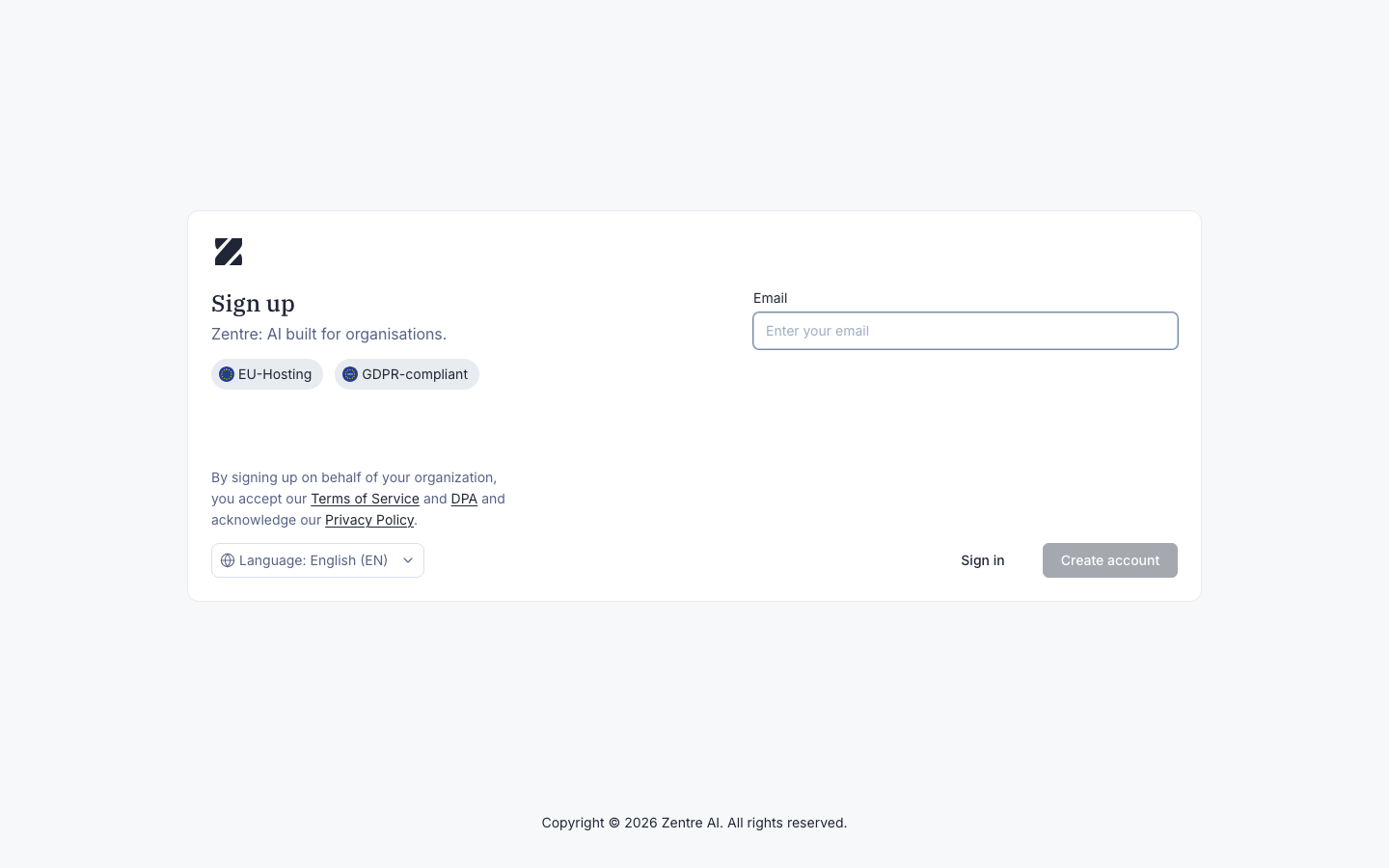
- Open the signup page.
- Enter your business email address in the Email field and select Create account. The legal note on the page links to the Terms of Service, the Data Processing Agreement (DPA) and the Privacy Policy.
- Check your inbox: Zentre AI confirms your registration by email.
If you already have an account, select Sign in on the signup page instead.
Set up your workspace
When you create a new workspace, you go through a short onboarding wizard: your name, your company, how you plan to use Zentre AI, and the teammates you want to invite. Chat opens once onboarding is complete. See Onboarding.
Ask your first question
Once onboarding is complete, start a chat:
- Select New chat.
- Type your question in the prompt box.
- Select the send button to get your answer.
See Chat for attachments, models and everything else you can do in a conversation.
Auto mode or a fixed model
In auto mode, Zentre AI picks the model, the thinking budget and whether web search is available for each message, using only models your team has access to. When you need a specific model, choose it yourself in the model selector. See Chat.
Add your first file
Upload a document to Personal in Knowledge: everyone can add files there, and only you can see them. A small file is usually ready in 15 to 30 seconds.
Then ask a question about it in chat. Zentre AI searches the Knowledge you have access to and draws on your file in the answer. See How the AI uses your files on the Knowledge page.
Create an agent from a template
Agents are assistants for specific tasks. Instead of starting from a blank page, browse the template library on the Agents page: templates are grouped by category, and you can create your own agent from one in a few clicks. See Agents.
Invite your team
During onboarding you can invite up to 4 teammates and choose a role for each. Later, admins invite more people with Invite user on the Users page. Invited people join the General team unless an admin selects other teams.
Before you can share files with someone you invited, they must sign in once: the Manage access picker lists only active users. What each person can do depends on their role; see Roles and permissions.
Get help
If something doesn't work as expected, start here:
Troubleshooting
Messages you may see, their cause and what to do.
Support
Send a request to the Zentre AI team from the app.
Glossary
The terms used in Zentre AI, explained.
Changelog
What is new in each release.
Related
Was this page helpful?