Connectors
Connectors link your existing tools to Zentre AI through MCP, so the AI can work with them directly — for example reading your calendar or drafting an email. Each connector is a small bridge to a service such as Google Calendar or Gmail.
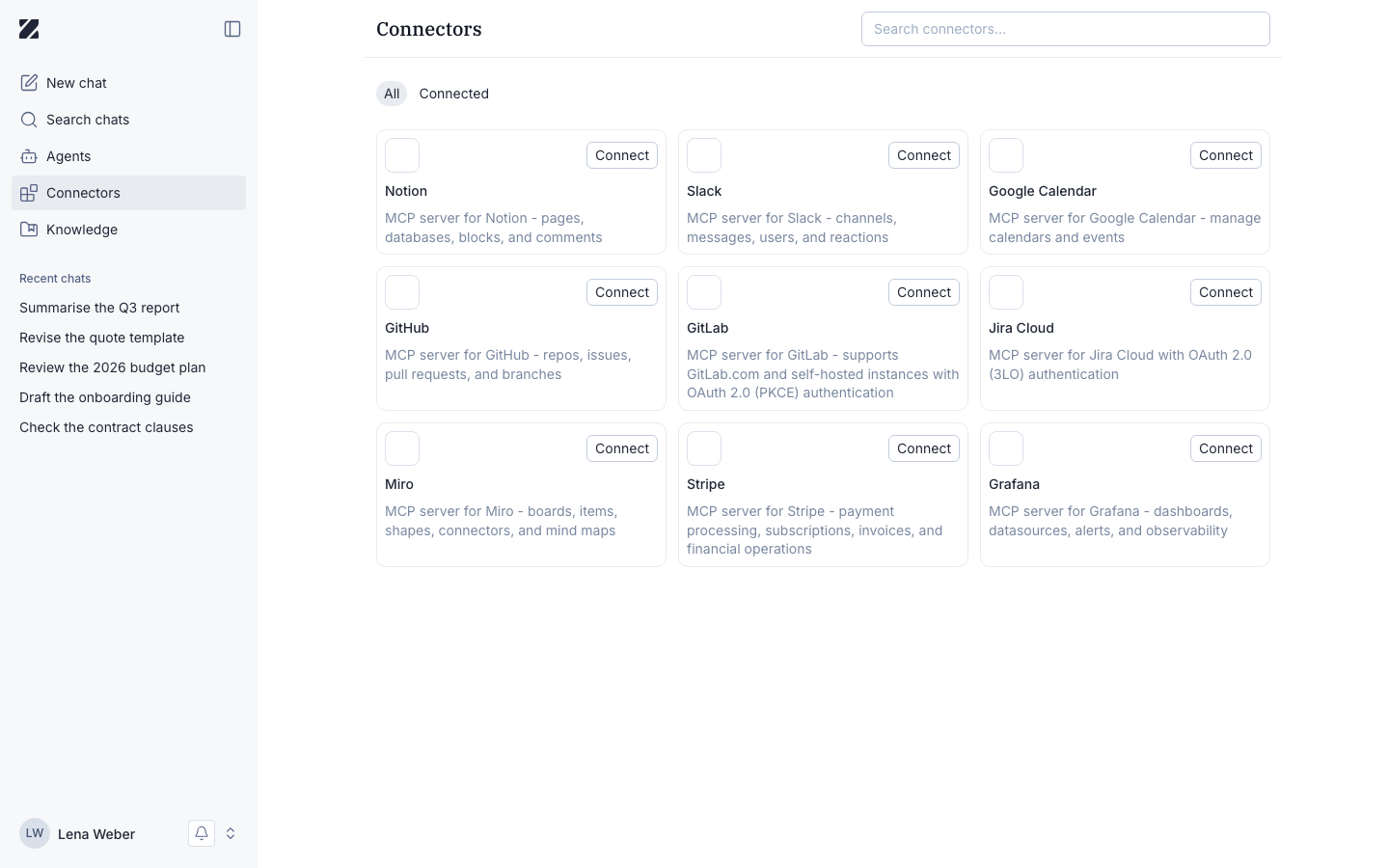
The Connectors page has a search box, tabs to filter (All and Connected), and a grid of connector cards. Each card has a short description (for example MCP server for …) and a Connect button.
What you can do here
Browse connectors
Use the All and Connected tabs to see what's available or already connected.
Search
Find a connector by name with the search box.
Connect a tool
Select Connect on a card to link the tool.
A connector must first be enabled by your workspace administrator before it appears here. Once you connect a tool, the tool permissions you grant appear under Account → Permissions.
Connecting a tool
- Open the Connectors page.
- Find the connector you want — browse the grid or use search.
- Select Connect on its card.
- Follow the prompts to sign in and grant access.
- The connector then appears under the Connected tab.
Frequently asked questions
Why can't I see a connector I need?
A connector must be enabled by your workspace administrator before it appears. Ask your administrator to enable it.
Where can I see what a connector is allowed to do?
The tool permissions you grant appear under Account → Permissions.
What does MCP mean here?
Connectors use MCP, a standard way for the AI to talk to external tools so it can act on your behalf within the access you grant.
Related
Was this page helpful?