Chat
Chat is where you talk to several AI models in one interface. You write a prompt, choose a model, and get an answer — and your data stays in Europe. Zentre AI is EU-hosted and GDPR-compliant.
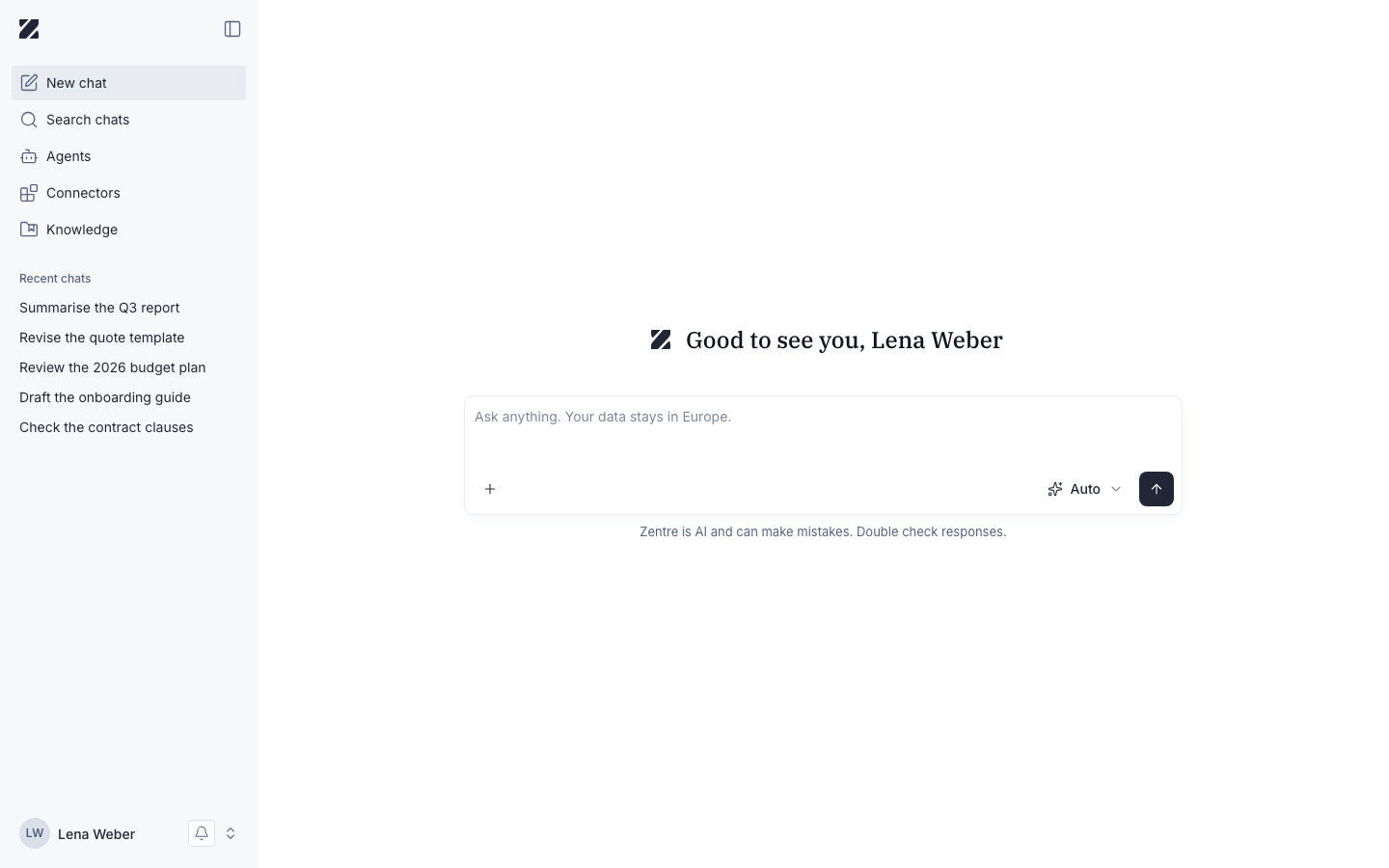
The prompt box shows the placeholder Ask anything. Your data stays in Europe. From there you can attach files with +, switch models with the model selector, and send your message.
What you can do here
Choose a model
Switch between OpenAI, Claude, Gemini, and Mistral with the model selector.
Attach files
Use the + button to add a file to your message.
Keep data in Europe
All processing is EU-hosted and GDPR-compliant.
Let Zentre pick
In auto mode, Zentre chooses the model for each message.
Create images
Ask for an image and Zentre generates it in the conversation.
Find past chats
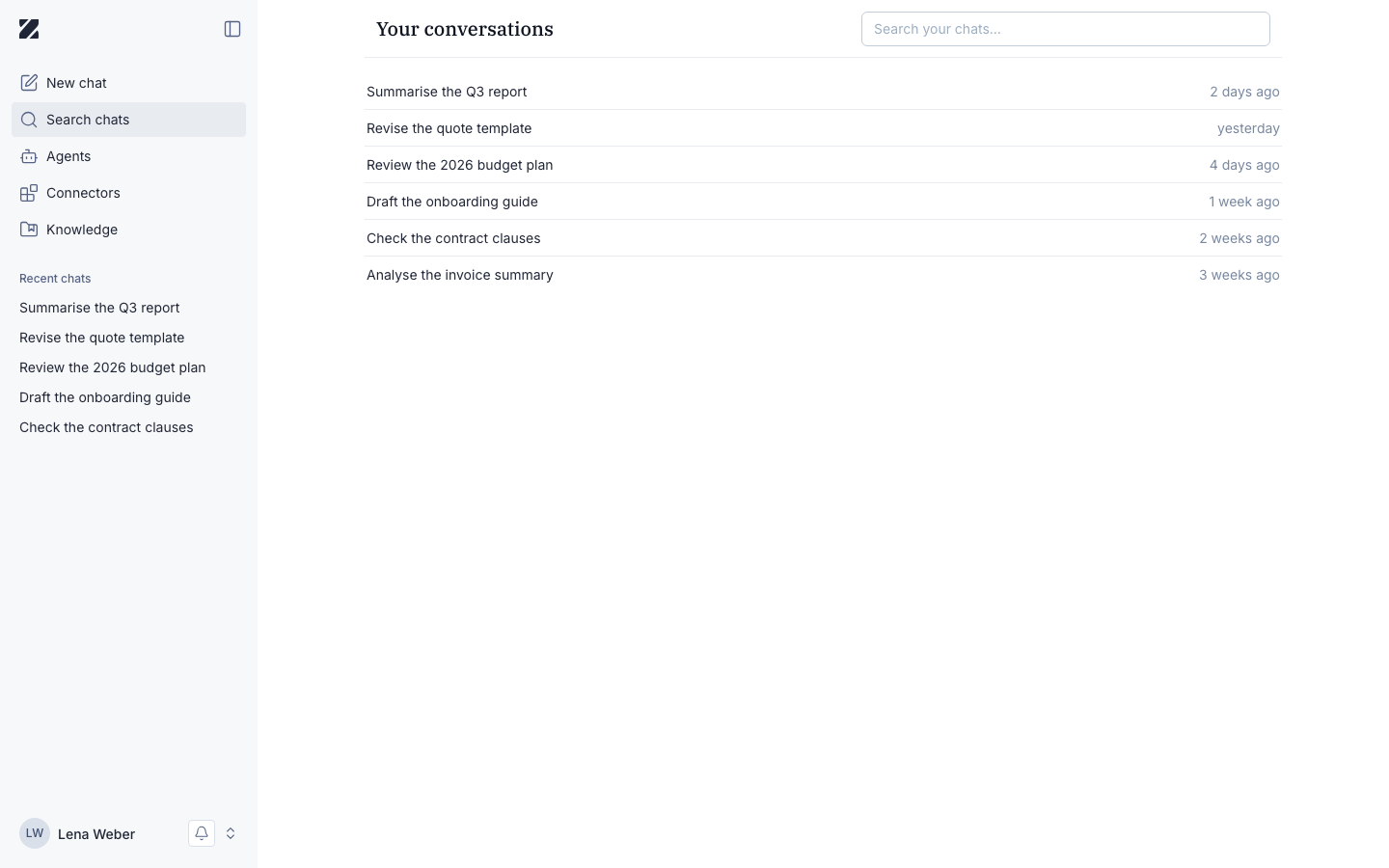
Search across all your conversations.
Starting a chat
- Select New chat to begin a fresh conversation.
- Type your prompt in the box.
- Optionally open the model selector and choose a different model.
- Optionally select + to attach a file.
- Select the send button to get your answer.
Choosing a model
The model selector shows the current model with a dropdown. Available models include OpenAI, Claude, Gemini, and Mistral. You can switch models between messages — pick the one that fits your task.
Auto mode
You don't have to choose a model for every question. In auto mode, Zentre decides for each message:
- which model answers
- the thinking budget
- whether web search is available
Good to know:
- Auto mode only uses models your team has access to. Admins set these on the Teams page.
- The model picked for one message isn't saved to the conversation. Your next message is routed again from scratch.
- When you chat with an agent, the agent's own model is used.
- In §203 mode, auto mode only picks §203-compliant models.
Auto or a fixed model
- Use auto mode for everyday questions, when you don't need a particular model. Zentre adapts the model, the thinking budget and web search to each message.
- Pick a model yourself when you want every answer from the same model, or need something only one model offers. Manual selection works as described above.
Web search
Models can search the web for current information.
In auto mode, Zentre decides for each message whether web search is available. Web search is turned off in §203 mode.
With a model you picked yourself, web search is off when you start a new chat.
With a model you picked yourself, you turn web search on or off:
- Select + (Add) next to the prompt box.
- Open Tools.
- Select Web search. Its checkbox shows whether web search is on.
In auto mode, the + menu has no Tools entry: Zentre decides for each message. While a model searches, the chat shows "Searching the web…".
Not every model supports web search. Hover over a model in the model selector: Supports lists what it can do. For a model without web search, Tools is greyed out, and Zentre reports "The selected AI model does not support Web search, so that option is not available. Please turn it off or choose a different model."
Extended thinking
Some models offer extended thinking. With a model you picked yourself, turn it on or off in the same menu as web search: select + (Add) › Tools › Extended thinking. For Claude models the item is called Adaptive thinking.
Extended thinking turns on the model's own reasoning before it answers. There is no extra charge for it, but it may increase your usage, because the model generates more tokens.
For models without thinking, the item is greyed out. If the option cannot be used, Zentre reports "The selected AI model does not support Extended thinking, so that option is not available. Please turn it off or choose a different model."
In auto mode the item is not offered: Zentre decides about thinking for each message. While a model thinks, the chat shows "Thinking…".
Create images
Ask for an image in chat, and Zentre generates it in the conversation. Generated images stay in the conversation when you reload the page.
Each image is charged to your organization's balance. See Billing.
Image generation isn't available in §203 mode.
While an answer is generated
You don't have to wait for an answer to finish. Keep typing your next prompt, attach files and prepare follow-up messages while the answer is still being generated.
After each answer, Zentre suggests three to five follow-up questions that fit the conversation.
Attachments
Select + to attach files to a message. Chat attachments and Knowledge accept different file types, and text over 5,000 characters that you paste into chat becomes a file in your Knowledge. See Chat attachments and Knowledge on the Knowledge page.
In the + (Add) menu, choose Attach files. You can also drag files onto the chat and drop them where it says "Drop files here to add to chat".
You can attach these file types:
| Group | File types |
|---|---|
| Documents | .pdf .docx .doc .txt .md .rtf .html .htm .xml |
| Spreadsheets and data | .xlsx .xls .csv .json .jsonl .yaml .yml |
| Presentations | .pptx .ppt |
| Code | .py .java .js .ts .c .cpp .css .sql |
| Images | .jpg .jpeg .png .gif .webp |
Good to know:
.docx,.xlsxand.pptxfiles are skipped. You can pick them, but Zentre removes them and keeps the other files: "Uploading DOCX, XLSX and PPTX files is not supported. These files have been skipped. You can upload and access them through the Knowledge Base." Upload such files to Knowledge instead.- Up to 10 MB per file by default. Your plan can set a different limit. A larger file is refused with "File size exceeds the maximum allowed limit."
- Up to 10 files per message. More are refused with "You can only attach up to 10 files in total."
- Other file types are not added. Zentre names the extensions it does not support.
- A file that is already attached is skipped: "Some files are already attached and were skipped."
- The model must support files. Otherwise Zentre reports "The selected AI model does not support file attachments." Choose a different model.
- In §203 mode, attachments are stored only in the confidential store and cannot be reused outside the conversation.
Chat history
Your conversations are kept in chat, so you can come back to them:
- Search: find a conversation on the Search chats page, which searches across all your conversations.
- Rename or delete: you can rename a conversation or delete it.
- Delete all chats: to delete every conversation at once, use Delete all chats on your Profile.
Delete a chat
You can delete a single chat in three places:
- In the sidebar under Recent chats: hover over the chat, select ⋯, then Delete.
- In an open chat: select the chat title at the top, then Delete.
- On the Search chats page: select the trash icon (Delete chat) in the chat's row.
Each opens the Delete chat dialog, "Are you sure you want to delete this chat?". Select Delete, or Cancel to keep the chat. If the chat was open, Zentre opens a new chat. Rename is in the same menus.
The app offers no undo for a deleted chat.
AI interaction notice
Zentre shows a notice that you are interacting with an AI system. Article 50(1) of the EU AI Act requires it, so that you always know you are talking to an AI and not to a person. The notice appears on the empty chat screen and under the prompt box, including in agent preview. It is accessible and available in all supported languages.
For how Zentre handles your data, see Data, privacy and compliance.
Frequently asked questions
Where is my data processed?
In Europe. Zentre AI is EU-hosted and GDPR-compliant, so your conversations stay within the EU.
Which models can I use?
The model selector includes OpenAI, Claude, Gemini, and Mistral. The current model is shown in the selector.
Can I attach a file to my prompt?
Yes. Select the + button next to the prompt box to attach a file before you send.
Can I switch models mid-conversation?
Yes. Open the model selector at any time and choose a different model for your next message.
Does auto mode remember the model it picked?
No. The choice isn't saved to the conversation. Zentre routes every message again from scratch.
Why don't I see a model?
You can only use the models assigned to your team, and auto mode only picks from those. Ask an admin if you need another model. See Teams.
Can I create images in §203 mode?
No. Image generation, web search and connectors are turned off in §203 mode.
Does every model support extended thinking?
No. A model that doesn't support extended thinking returns an error. In auto mode, Zentre decides about thinking for each message.
Related
Was this page helpful?