Agents
Agents are assistants you build for specific tasks — a research helper, a writing assistant, or any focused tool you reuse. You can browse agents that already exist or create your own.
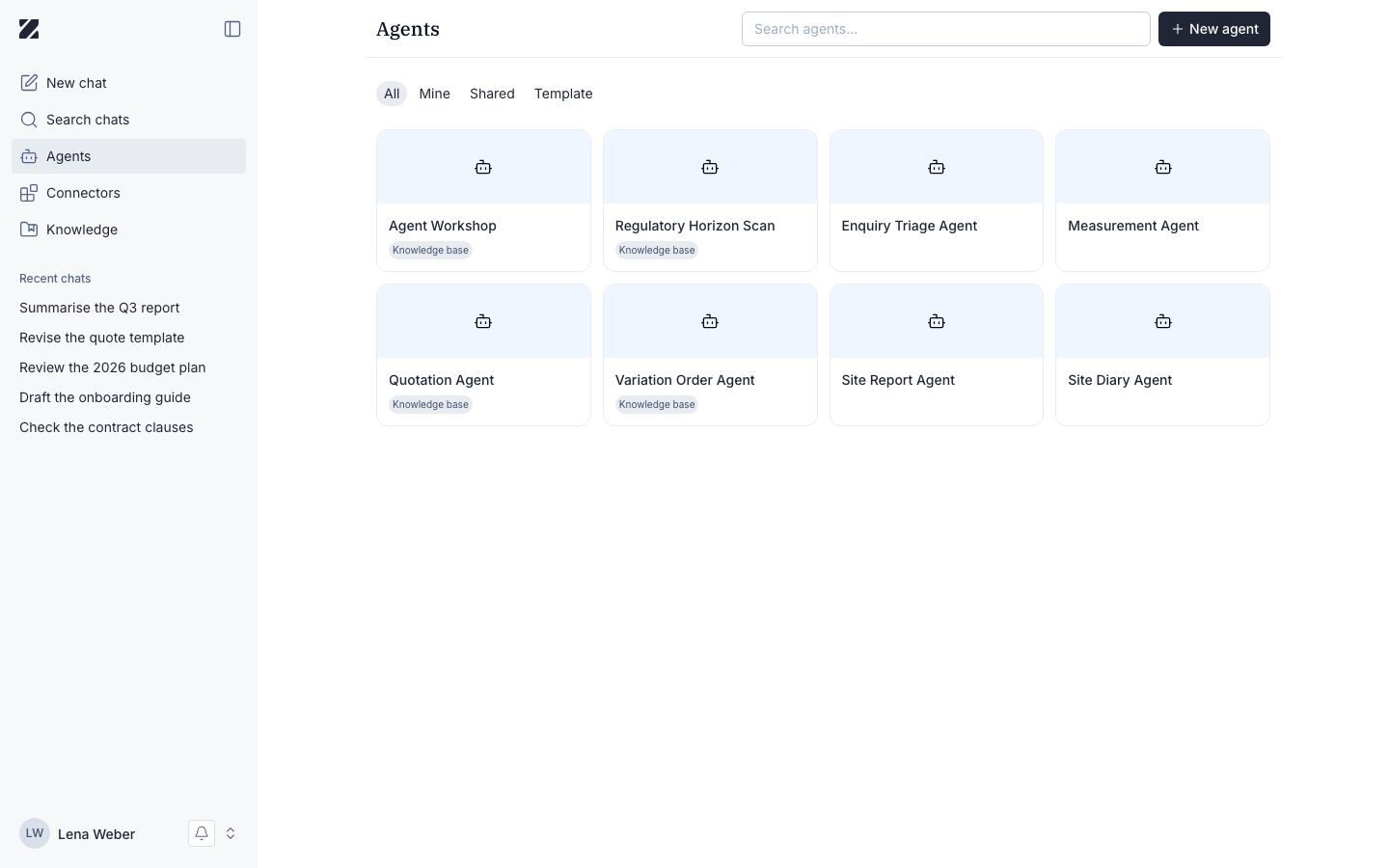
The Agents page has a search box (Search agents), a New Agent button, and tabs to filter what you see: All, Mine, Shared, and Template.
What you can do here
Browse agents
Switch between All, Mine, Shared, and Template to find an agent.
Search
Use Search agents to find one by name.
Create an agent
Select New Agent to build an assistant for a task.
Browsing agents
- Open the Agents page.
- Use the tabs — All, Mine, Shared, or Template — to filter the list.
- Type in Search agents to find a specific agent by name.
- Select an agent to start using it.
If you haven't built or used any agents, you'll see the empty state: You haven't built or used any agents yet.
Start from a template
Instead of a blank page, you can start from a ready-made agent. Open the Template tab, choose a template and create your own agent from it.
- Templates are grouped by category, so you can find an agent for a specific task.
- Templates built for §203 Professional Secrecy Mode are only visible to organizations entitled to use that mode.
- If a template uses connectors, Zentre matches them with the connectors your organization has already set up.
Creating an agent
- Select New Agent.
- Fill in the fields of the Agent Builder: a name, instructions, and the model, capabilities, tone, connectors and Knowledge the agent uses. The fields are described below.
- Test the agent in the preview chat while you build it.
- Save the agent. It then appears under Mine.
Agent Builder fields
| Field | Required | Editable | Notes |
|---|---|---|---|
| Name | Required | Yes | 5 to 50 characters. German and other non-Latin characters are allowed. |
| Instructions | Optional | Yes | What the agent should do. Enhance turns your text into structured instructions. Long instructions are not cut off. Rich-text styling is removed. |
| Model | Optional | Yes | The AI model the agent answers with. In chat, an agent always uses its own model, also when auto mode is selected. |
| Capabilities | Optional | Yes | What the agent may use besides the model, for example web search. In §203 mode, agents with web search or connectors are turned off. |
| Tone | Optional | Yes | How the agent writes its answers. |
| Connectors | Optional | Yes | The tools the agent can reach. You can choose from the connectors your organization has set up. |
| Knowledge | Optional | Yes | Files the agent uses in its answers. When you attach Knowledge, Zentre picks a model and mode that support it. |
Conversation starters
An agent can offer up to five conversation starters. They appear in chat and show people what the agent is good at.
Enhance rewrites a starter into a short, improved question in the language of the chat.
Test an agent while you build it
A live test chat lets you try an agent before you use it. It is available when you create an agent, on the agent detail page and on shared agents. On a desktop it opens as a side panel, on a mobile device as a bottom sheet.
Sharing an agent
Agents can be shared with other people in your organization:
- A shared agent opens in a read-only view for the people it is shared with.
- You can duplicate a shared agent. The copy doesn't take over a model or Knowledge you can't access.
- Member access to an agent is managed in a dedicated panel.
- Renaming an agent updates its name for everyone it is shared with.
- The same agent name can appear under Mine and under Shared.
Every agent has an info sheet with its details. For sharing files, see Share files.
Knowledge on agents
An agent answers from the Knowledge you attach to it. That Knowledge can change after you build the agent:
- Deleting a file removes it from every agent that holds it.
- Revoking a share removes the file from the agents the recipient attached it to.
- A Normal agent can't be given a §203 file.
- When you switch an agent between Normal and §203 mode, it is saved in the mode you selected. See §203 Professional Secrecy Mode.
For details, see How the AI uses your files on the Knowledge page.
Permissions & roles
- Audience
- All users
- Applies to
- Agents you create, share or use
Everyone can create agents. Agents shared with you are read-only; duplicate one to change it. In §203 mode, agents with web search or connectors are turned off. See Roles and permissions for every role at a glance.
Frequently asked questions
What's the difference between the tabs?
All shows every agent available to you, Mine shows agents you created, Shared shows agents shared with you, and Template shows pre-built agents you can start from.
Why is my list empty?
If you see You haven't built or used any agents yet., you have not yet created or opened an agent. Select New Agent to start.
Where do my new agents appear?
Agents you create appear under the Mine tab.
Why can't I edit a shared agent?
Shared agents open read-only. Duplicate the agent to get your own copy that you can change.
Why did my agent lose a file?
The file was deleted, or the person who shared it with you revoked the share. Both remove the file from your agents.
Related
Was this page helpful?