Users
The Users page is where you manage the people in your workspace. From here you invite new users, assign their roles, review their usage, and export the full list.
The user list
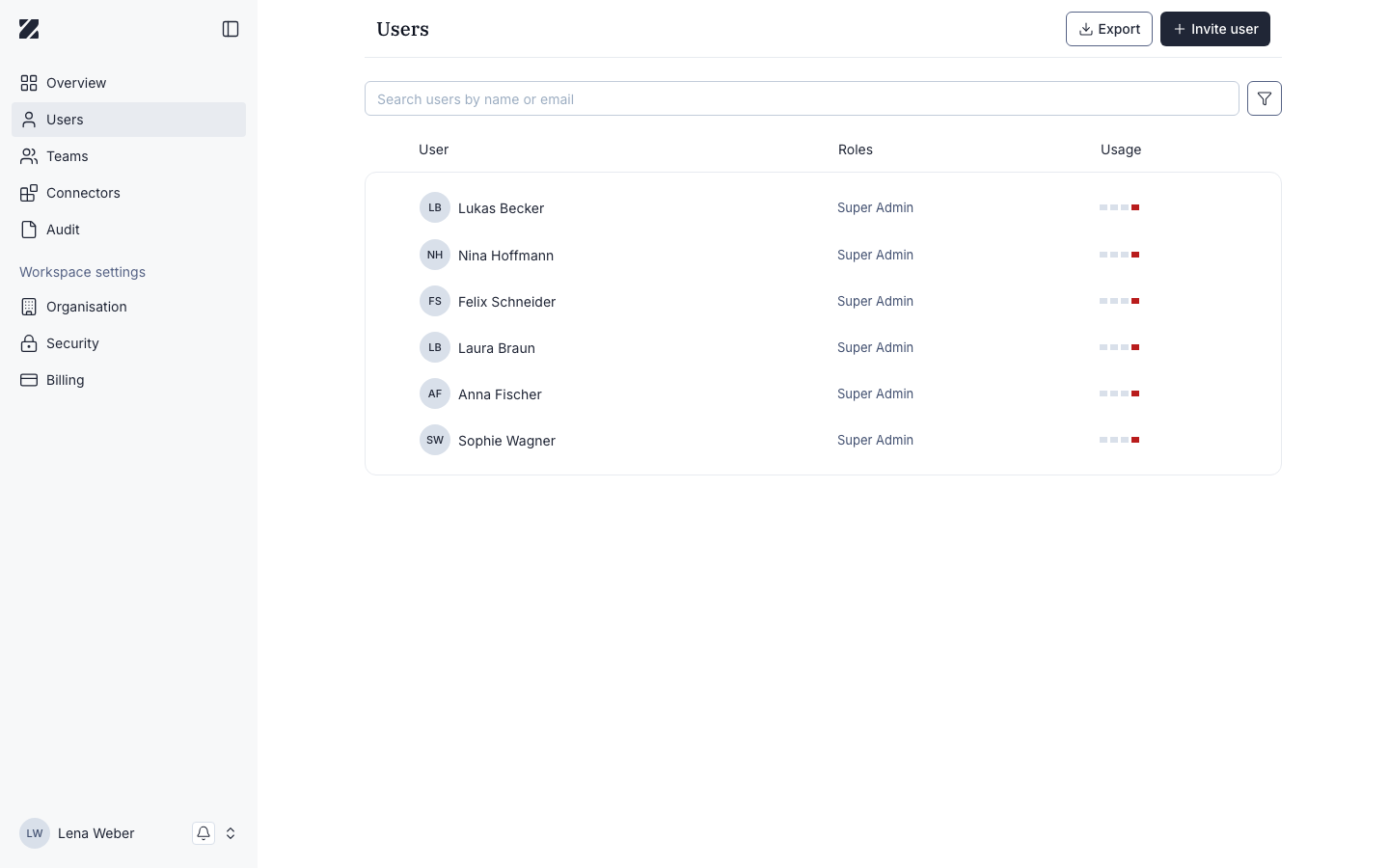
The page header reads Users. A search box labeled Search by name or email filters the list, and two buttons sit alongside it: Export downloads the user list, and Invite user opens the invitation flow.
The table shows three columns:
User
Name and email of each person.
Roles
The role assigned to the user.
Usage
Recent activity for the user.
Roles
Four roles appear in the list:
- Member — a standard user of the workspace.
- Billing Owner — can open the Billing pages only. A user who holds this role without an admin role is taken to Billing when they open any other admin page.
- Admin — manages workspace settings, users, and teams.
- Super Admin — has the highest level of access.
See Roles and permissions for every role at a glance.
Filtering and sorting
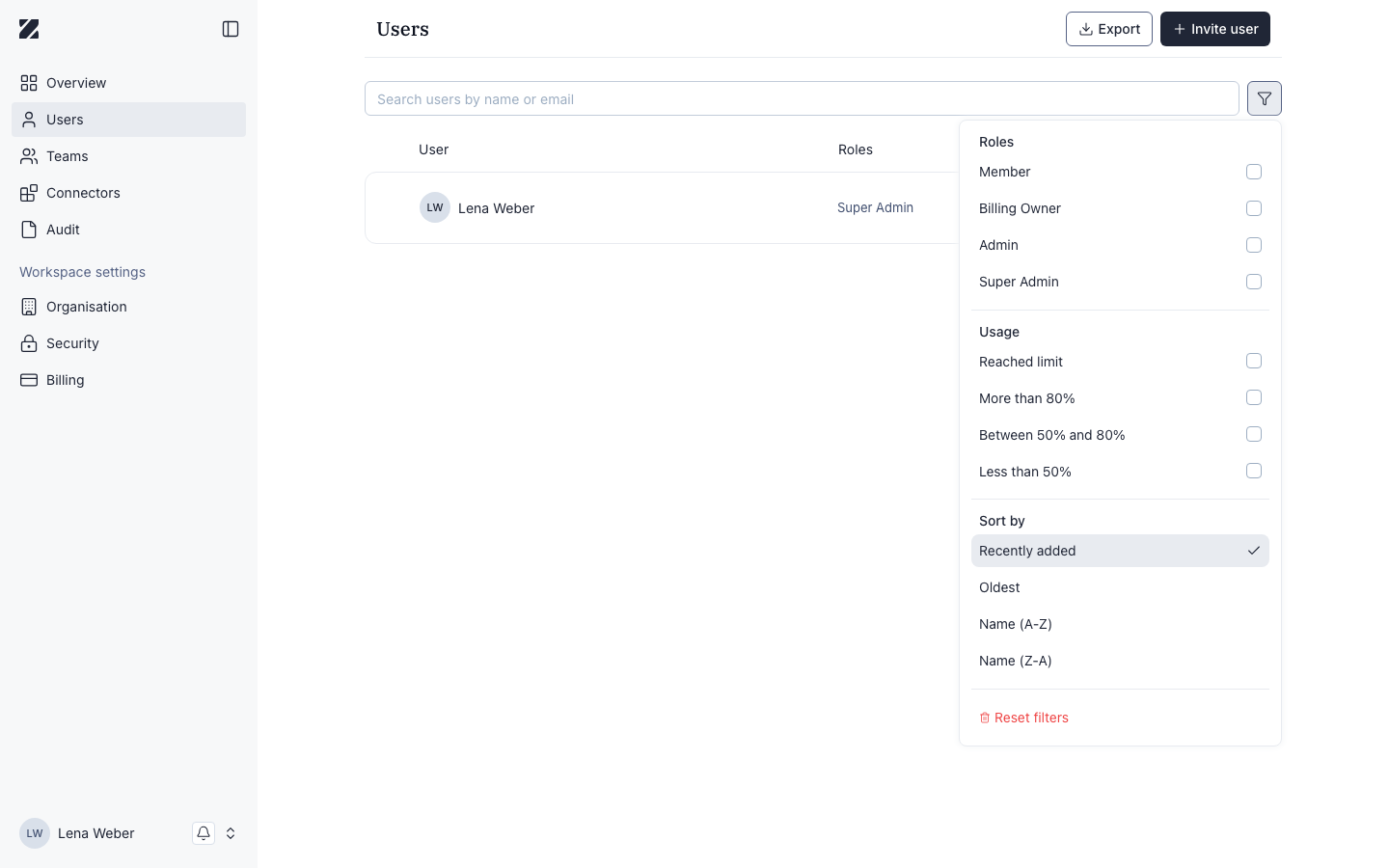
The filter icon next to the search box opens a panel with:
- Roles — filter by Member, Billing Owner, Admin, or Super Admin.
- Usage — filter by Reached limit, More than 80%, Between 50% and 80%, or Less than 50%.
- Sort by — Recently added, Oldest, Name (A-Z), or Name (Z-A).
- Reset filters — clear all active filters and sorting.
User detail
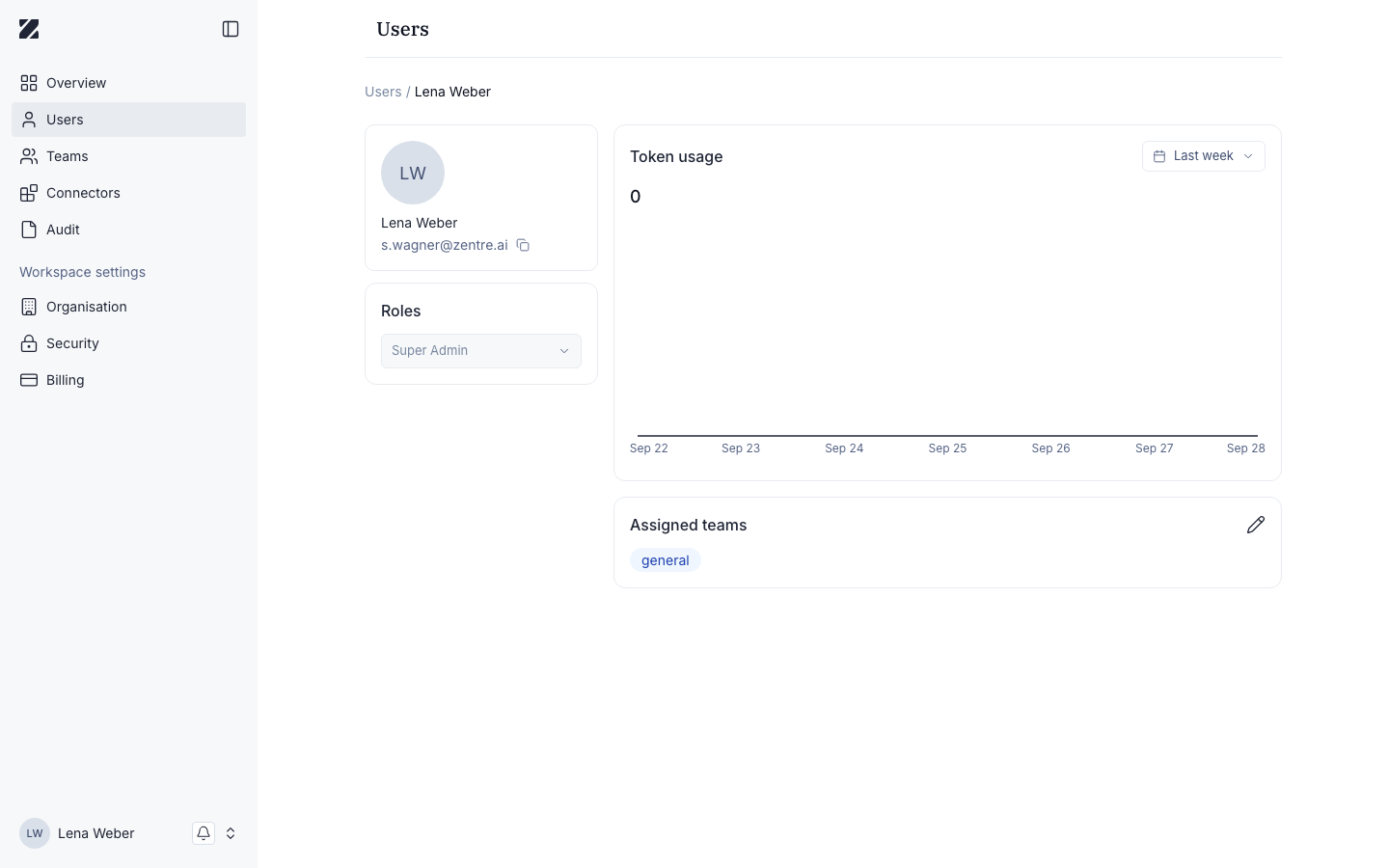
Select a user's row to open their detail page. It shows their name and email, their Roles, a Token usage chart for the selected period, and the teams they belong to.
Who can change a user's roles depends on your own role:
- A Super Admin can change the roles of any other user.
- An Admin can change the roles of users who are not a Super Admin, Admin, or Billing Owner.
- You cannot change your own roles.
A user can hold more than one role, and must keep at least one.
Two-factor authentication
When your organization requires two-factor authentication (see Security), the user detail page also shows a Two-Factor Authentication card. It says whether the user has configured an authenticator app.
If a user has lost their authenticator app or the device it runs on, reset their two-factor authentication:
- On the user's detail page, select Reset 2FA in the Two-Factor Authentication card. The button appears only when the user has configured an authenticator app.
- Confirm in the Reset two-factor authentication dialog. The user's authenticator app is removed.
- The next time the user signs in, they are asked to set up a new authenticator app.
You cannot reset your own two-factor authentication. You also cannot reset it for a user who has never signed in to the workspace.
A Super Admin can reset two-factor authentication for any other user. An Admin can reset it only for users who are not a Super Admin, Admin or Billing Owner.
Inviting a user
- On the Users page, select Invite user.
- Enter the person's email address.
- Choose a role for them. A Super Admin can choose any role; an Admin can invite only with the Member role.
- Confirm to send the invitation.
Exporting the user list
To download the current list of users, select Export in the page header. The export reflects the users and roles shown in the table.
§203 Professional Secrecy Mode
If your organization uses §203 Professional Secrecy Mode, some users hold §203 access in addition to their roles.
Only a Super Admin can request §203 for the organization and manage §203 access. An Admin cannot request, enable or revoke §203 for anyone, including themselves. The primary §203 Super Admin cannot be disabled by another Super Admin, and cannot disable themselves.
A user's §203 access
The user list has no §203 column or filter. To see whether a user holds §203 access, select their row. The detail page shows a Professional secrecy mode card, "Manage this user's access to professional secrecy mode workspaces.", with a switch. When the switch is on, the user holds §203 access.
The card appears only when §203 is enabled for your organization and the user is one of its §203 users.
Only the primary §203 administrator can use the switch: the Super Admin who raised the organization's §203 request. Other Super Admins and Admins cannot use it. The primary administrator can use it for other users, not for their own account: on their own detail page the switch is on and cannot be changed. Their own access ends only when §203 access is revoked for the whole organization.
- To grant access, turn the switch on. Access is granted at once, without a confirmation, and the app shows "Professional Secrecy Mode access granted."
- To revoke access, turn the switch off. The card warns: "Revoking purges this user's Professional Secrecy Mode knowledge-base data." A confirmation with the same text opens: select Revoke, or Cancel to keep the access. The app then shows "Professional Secrecy Mode access revoked."
The switch refuses a change with one of these messages:
- "Only the primary Professional Secrecy Mode administrator can manage Professional Secrecy Mode access." You are not the primary §203 administrator.
- "The primary Professional Secrecy Mode administrator's access cannot be revoked here. Contact platform support to disable it for the organisation." Only platform support can end this access.
- "This user must accept their invitation and sign in before Professional Secrecy Mode access can be granted." Ask the user to accept the invitation and sign in once, then try again.
Deleting a user with §203 access
Deleting a Super Admin who is enrolled in §203 depends on the state of their §203 request:
- Approved: a Super Admin cannot delete them.
- Never approved (Rejected or Pending review): a Super Admin can delete them.
When §203 blocks a deletion, the app shows This user cannot be deleted with one of these reasons:
- The user owns an approved §203 request, and this version of Zentre cannot clear that block. Contact platform support before you delete the user.
- The user owns a §203 enrollment that has not been revoked. Revoke the organization's §203 access first. Once the revocation has finished, the user can be deleted, and the enrollment is kept as a record.
- A §203 revocation for the user has not finished yet. Wait for it to complete, then delete the user.
- A §203 revocation for the user failed and stopped. It does not finish on its own: platform support must retry it. Contact support; once the revocation has finished, you can delete the user.
If the user submitted a §203 request that has not been approved, the dialog notes that deleting the user also withdraws that request.
When you delete several users at once, users who cannot be deleted because of §203 are skipped, and the app says how many.
Related
Was this page helpful?