Teams
Teams group users together and control which AI models those users can access. Use teams to give each group of people exactly the models they need.
The teams list
The page header reads Teams. A search box filters the list, and New team opens the team creation flow.
The table shows four columns:
Team name
The name of the team.
Users
The number of users in the team.
Models
The set of models available to the team.
Usage
Recent activity for the team.
Understanding the Models column
The Models column shows the set of AI models available to that team. Members of a team can use the models listed there; models that are not assigned to the team are not available to its members. Use this to grant or restrict model access per group.
Creating a team
- On the Teams page, select New team.
- Enter a team name.
- Add the users who belong to the team.
- Choose the models the team can access.
- Save to create the team.
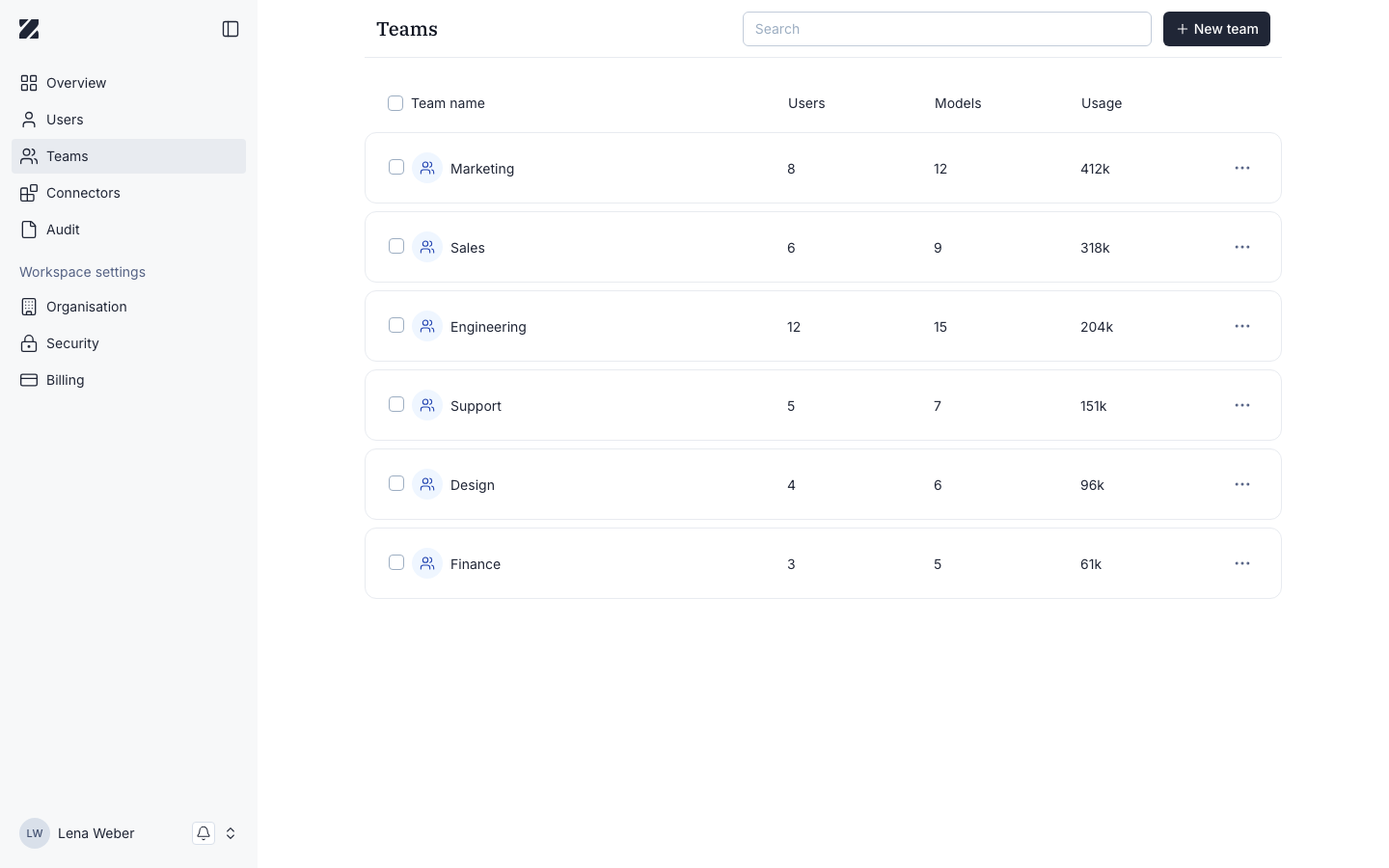
Row menu
Each team row has a ... menu with Rename and Delete.
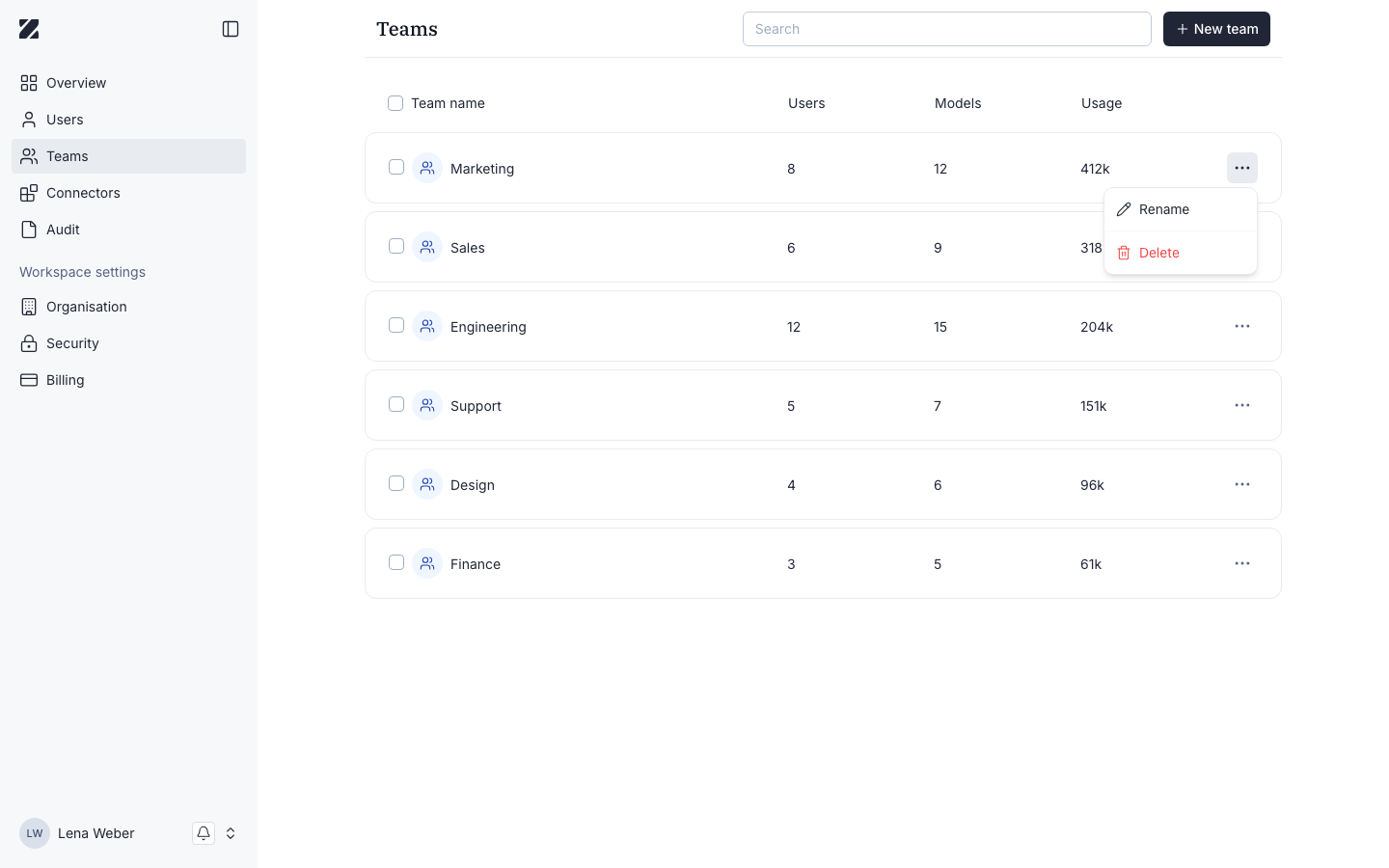
Team detail
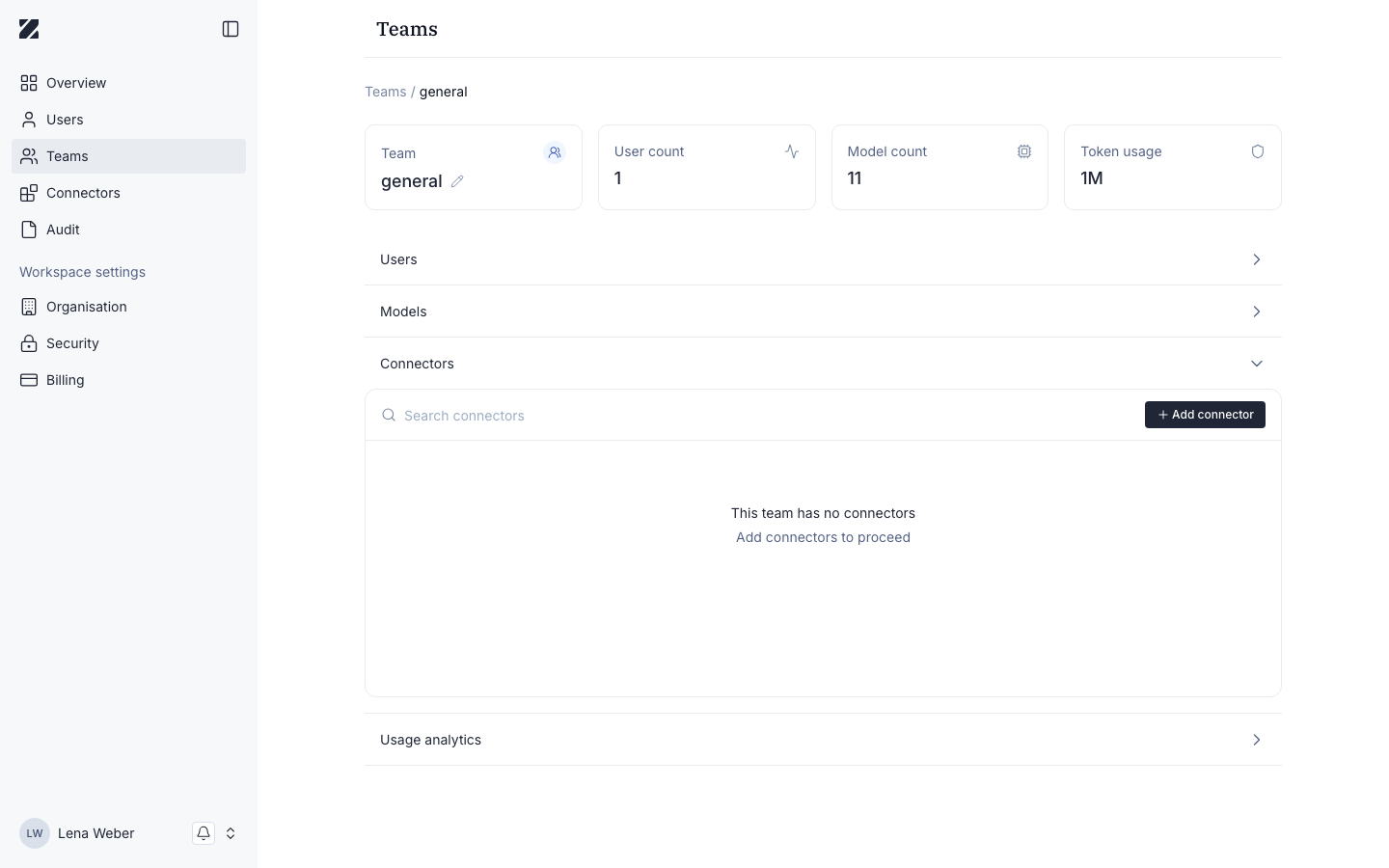
Select a team's row to open its detail page. A breadcrumb reads Teams / <team name>, and stat cards show User count, Model count, and Token usage. The team name itself can be edited inline via a pencil icon. Below the stats, four collapsible sections manage the team:
Users
Search and add users; remove a user from the team.
Models
Choose which AI models the team can access.
Connectors
Add connectors the team can use.
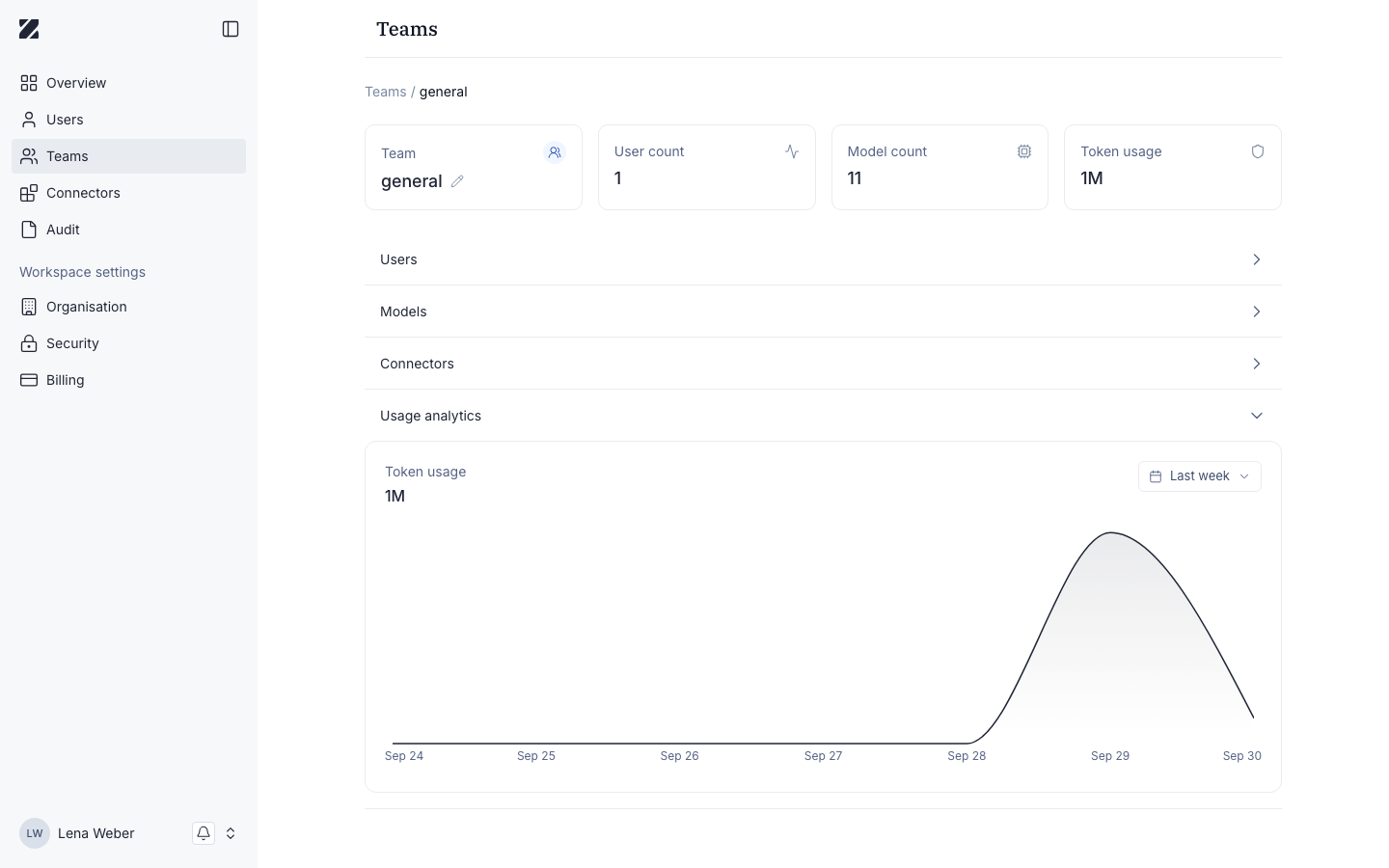
Usage analytics
A token usage chart for a selectable date range.
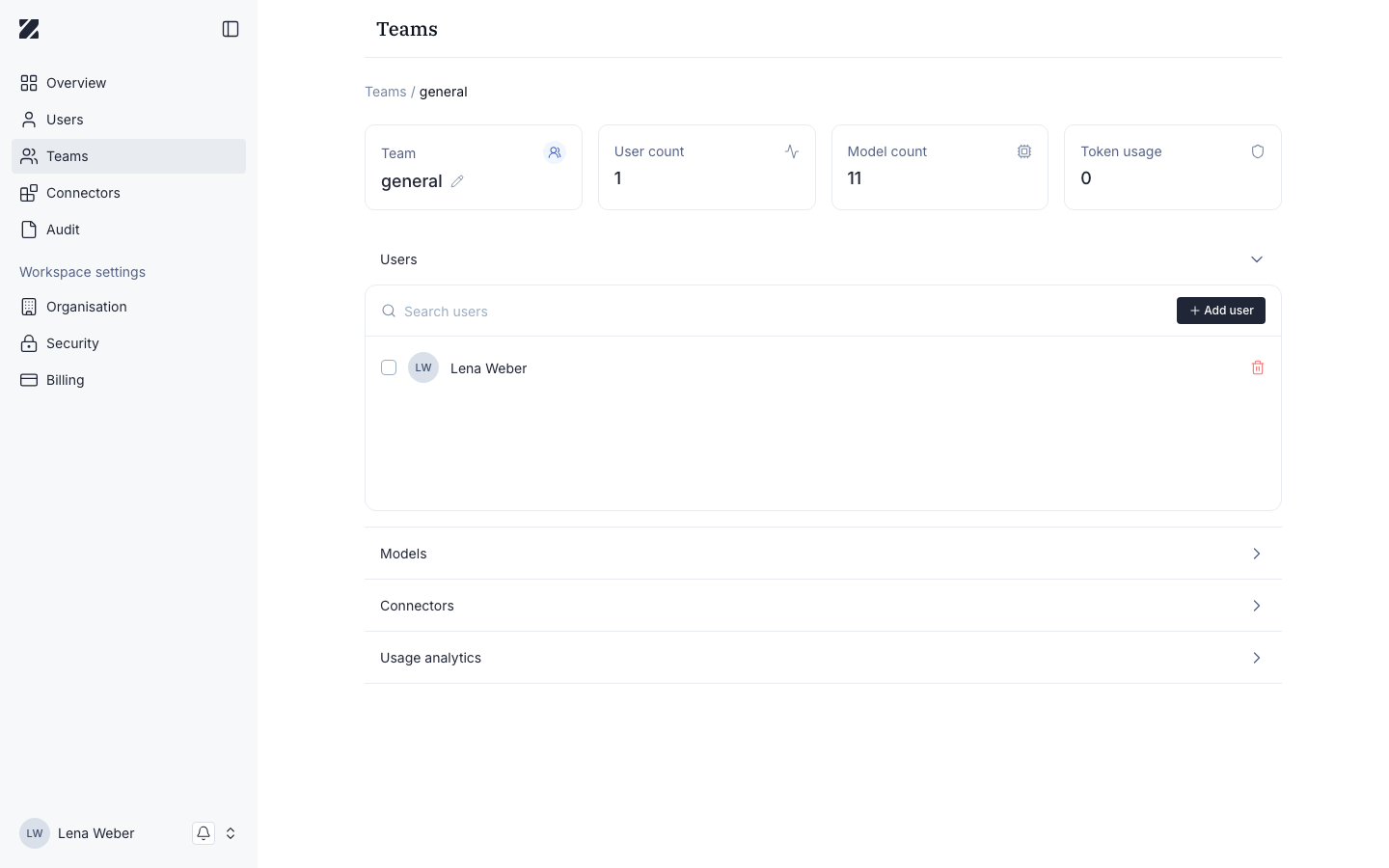
Models
The Models section lists models grouped by provider (for example Anthropic, Google, Mistral AI, OpenAI), each with a count of available models. Selecting a model shows its description, what it's used for, its input and output types, and what it supports. Turn on Supports professional secrecy mode to narrow the list to models that support that mode. Check the models the team should have access to, then select Save.
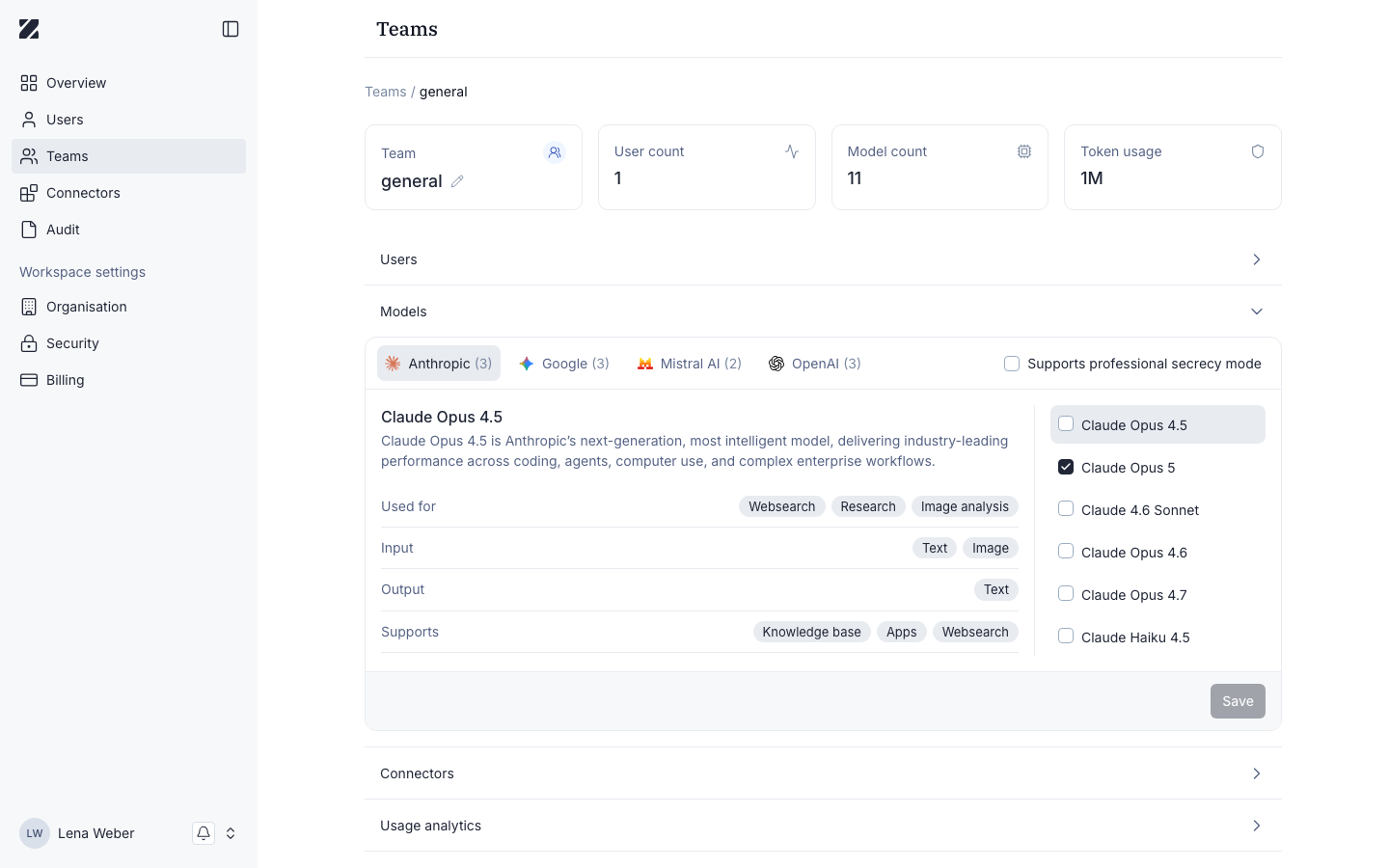
Connectors
The Connectors section lets you search and Add connector for connectors this team can use. When none are added, it shows This team has no connectors.
Usage analytics
The Usage analytics section shows a Token usage chart for the team, with a date-range selector (for example Last week).
Related
Was this page helpful?