Security
The Security page holds workspace-level security controls. It is split into three sub-tabs: PII, where you control detection of personal data in chat, SSO, where you configure single sign-on for your workspace, and MFA, where you set up multi-factor authentication.
Sub-tabs
PII
Detect and mask personal data in chat.
SSO
Configure single sign-on for your workspace.
MFA
Set up multi-factor authentication for your workspace.
PII
The PII tab includes a Chat section with a PII detection toggle. When enabled, Zentre AI detects and masks personally identifiable information in chat, helping keep sensitive data out of conversations.
- Open the PII sub-tab.
- In the Chat section, turn on PII detection.
- Select Save settings to apply your changes.
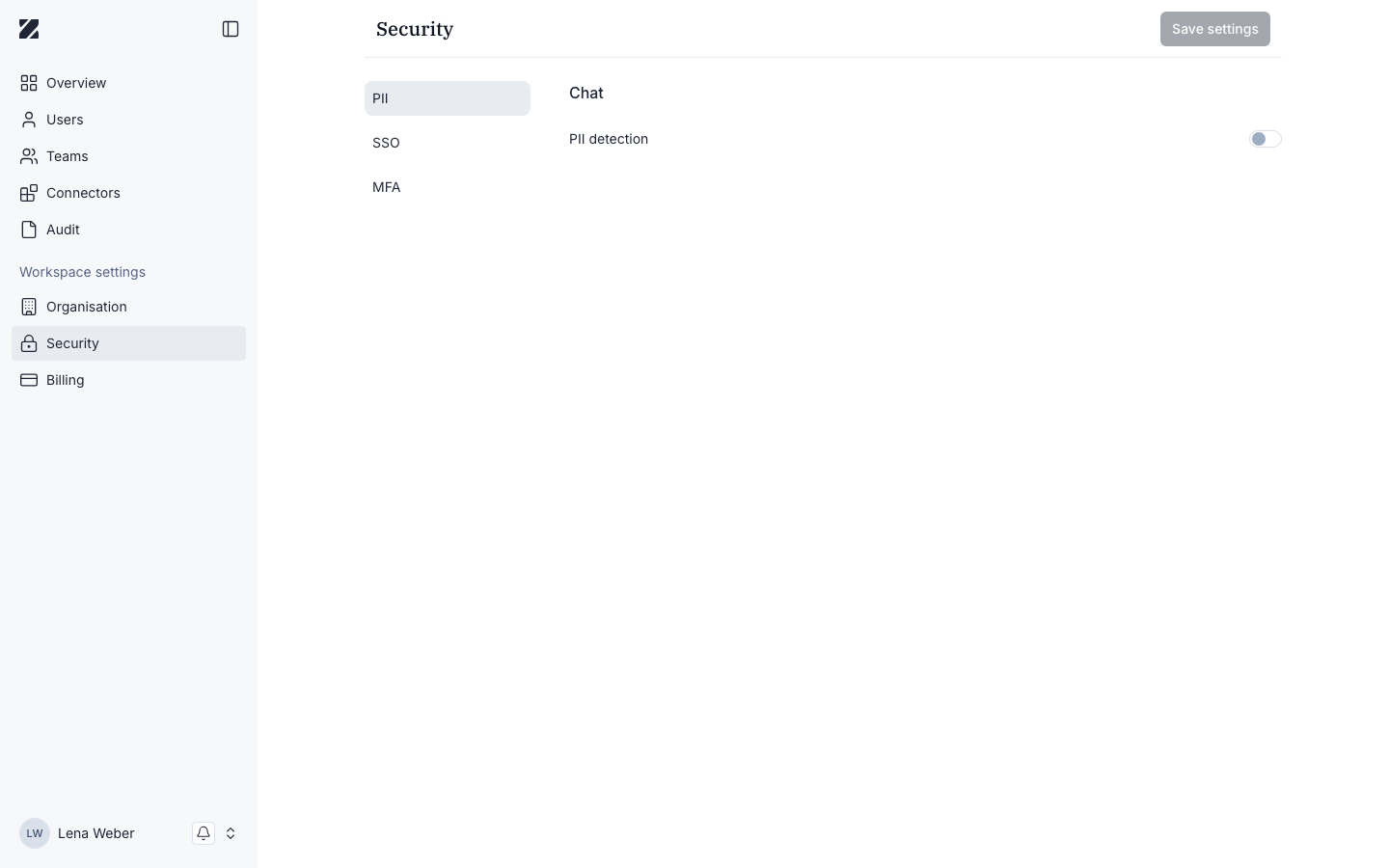
Changes take effect once you select Save settings.
What PII detection finds
PII detection finds personal data in text, including:
- Names
- Email addresses and phone numbers
- Postal addresses and dates
- IBANs and credit card numbers
- IP addresses and URLs
- Crypto addresses
- German identifiers: tax ID (Steuer-ID), social security number (Sozialversicherungsnummer), ID card number (Personalausweis) and vehicle registration plate (Kfz-Kennzeichen)
This list is not complete; other kinds of personal data are detected too. Detection and masking are validated for English and German.
How masking works
When masking is on, Zentre AI replaces personal data with placeholders before the model sees the message. The model works only with the placeholders.
In the answer shown to the user, the placeholders are replaced with the original values again, so the user reads a normal answer.
If masking is on and the masking service cannot process a message, Zentre AI does not send the message to the model. A message is never sent unmasked because masking failed.
PII settings
The PII sub-tab has these settings. They apply to the whole workspace.
| Setting | What it does |
|---|---|
| Detection | Turns PII detection on or off. |
| Anonymize before AI | On: personal data is masked before the model sees it. Off: personal data is only detected and counted, and the text is sent to the model unmasked. |
| Method | Hash: the same value always gets the same placeholder, even across conversations. Replace: each occurrence gets a new placeholder. |
| Confidence threshold | How certain a match must be before it is masked. A higher threshold masks only the most certain matches. |
| Store original | Turns storing of the original values on or off. |
Where it applies
PII detection and masking apply to:
- Chats and agents
- The agent preview
- Edited and regenerated messages
- Attachments
- Conversation titles, which never contain personal data
The PII detections figure on the Overview counts the personal data that detection has found.
SSO
The SSO tab configures single sign-on so your members authenticate through your identity provider. It is described in the app as Single sign-on — Provide secure organisation-wide login through your identity provider.
Only a Super Admin can set up SSO. SSO and enforced two-factor authentication cannot both be on: before you turn on SSO, turn off Require two-factor authentication on the MFA tab, and the other way round.
Set up SSO
- Open the SSO sub-tab.
- Turn on Single sign-on. The setup fields appear below it.
- Under SSO protocol, choose SAML v2.0 or OpenID Connect v1.0.
- Enter the values from your identity provider, and give your identity provider the values Zentre shows. The fields for each protocol are listed below.
- Select Save settings.
The setup works with any identity provider that supports SAML 2.0 or OpenID Connect. Zentre has no presets for individual providers, so look up the matching values in your provider's documentation.
SAML 2.0
The Identity provider setup tab takes the values from your identity provider, in one of two ways:
- With Use entity descriptor (SAML metadata) turned on, paste the SAML metadata XML from your identity provider. It contains all required settings.
- Without it, enter the Entity ID (the identity provider's entity ID), the SSO URL and the Certificate (the X.509 certificate from your identity provider). All three are required.
- Optional: The SAML 2.0 Single Logout Service URL, for sign-out through the identity provider.
The Service provider config tab shows the values for your identity provider. Copy them, or download the metadata XML file and upload it to your identity provider:
- SP entity ID
- Assertion consumer service (ACS) URL
- Home URL: set it in your identity provider to allow sign-in that starts at the identity provider (IdP-initiated sign-in).
- Download SP metadata XML: the metadata file to upload to your identity provider.
OpenID Connect
For OpenID Connect, enter:
- With Use OpenID Connect discovery (recommended): the Discovery URL. Zentre configures the other endpoints from it.
- Without discovery: the Authorization URL and the Token URL (required), and the User info URL, JWKS URL and Logout URL (optional).
- The Client ID and the Client secret registered with your provider. Both are required.
- The Client authentication method: Client secret (basic), Client secret (post), Client secret (JWT) or Private key JWT.
- The Default scopes, separated by spaces. The field starts with
openid email profile.
The Redirect configuration tab shows the Redirect URI. Add it as an allowed redirect URI in your provider's client configuration. To allow IdP-initiated sign-in, also set the Home URL in your provider to the value shown there.
Delete the SSO configuration
Select Delete configuration, then Delete in the Delete SSO configuration? dialog.
The SSO configuration is removed permanently, and users then sign in with a username and password. This cannot be undone.
What members see at sign-in
Sign-in starts with the email address: members enter it under "Enter your email to continue", and Zentre detects their organization. If the email address belongs to several organizations, they choose one.
With SSO, the identity provider manages passwords: the account settings show "Password change is managed by your identity provider." If an SSO sign-in fails, members see "SSO login failed. Please try again."
MFA
The MFA tab holds a Two-Factor Authentication section with a Require two-factor authentication toggle. When enabled, every member of your organisation must set up an authenticator app before they can sign in.
- Open the MFA sub-tab.
- Turn on Require two-factor authentication.
- The setting is saved at once. The app confirms "Two-factor authentication setting updated."
Two-factor authentication cannot be required while SSO is on. Turn SSO off first.
What members see
Once two-factor authentication is required, a member who has not set it up sees at sign-in: "Your organisation requires two-factor authentication. Complete the authenticator setup to sign in." They then:
- Install an authenticator app.
- Scan the QR code with the app. If they can't scan it, they enter the code shown below it.
- Enter the 6-digit code from the app.
They then sign in again with the authenticator app. At every later sign-in, Zentre asks for the verification code from the app.
A member lost their authenticator
If a member loses their authenticator app or device, an administrator resets their two-factor authentication: select Reset 2FA on the member's detail page in Users. At their next sign-in, the member sets up a new authenticator app.
Permissions & roles
- Audience
- Administrators
- Applies to
- Workspace administration
Only workspace administrators can open the Security page and change these controls. PII detection and SSO settings apply to the entire workspace.
See Roles and permissions for every role at a glance.
Related
Was this page helpful?