Connectors
The admin Connectors page is where you choose which connectors are enabled for your whole workspace and enter each connector's settings. This is the governance side: you decide which connectors are available. Once a connector is enabled, members connect to it for their own use from the user Connectors page.
Admin vs. user Connectors
These are two distinct pages with different responsibilities.
Admin Connectors
Turn connectors on or off for the workspace and enter their settings.
User Connectors
Members connect to enabled connectors for their own use.
The connector grid
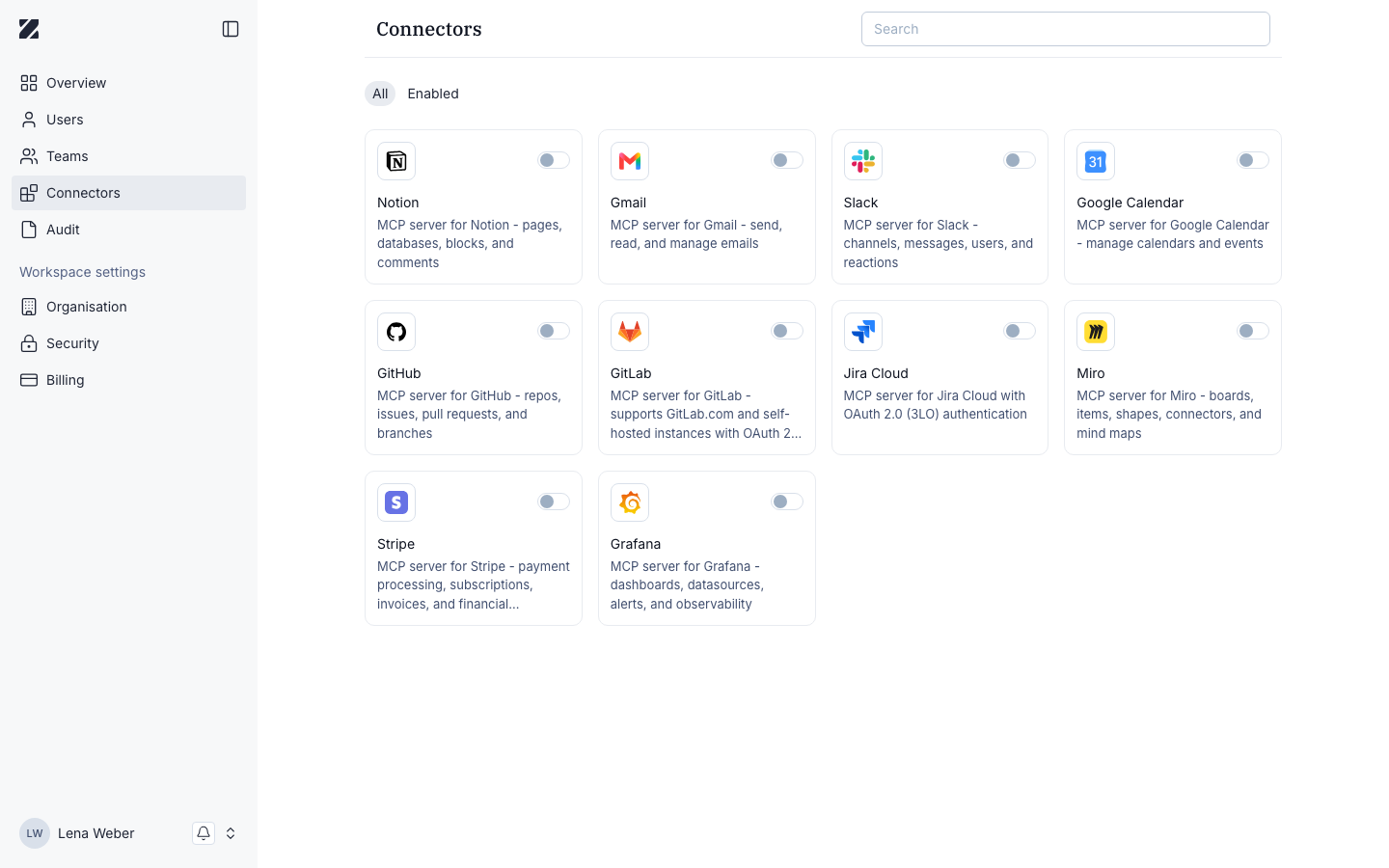
The page shows a title, a search field, and tabs to filter the list: All and Enabled. Below them is a grid of connector cards — for example Notion, Gmail, Slack, Google Calendar, GitHub, GitLab, Jira Cloud, Miro, Stripe, and Grafana. Each card is an MCP server with a short description and an on/off toggle.
Enabling a connector
- Open Connectors in the admin console.
- Find the connector you want in the grid.
- Switch on the toggle on the connector's card to enable it for the workspace. Switch it off to disable the connector again.
Use the Search field and the All / Enabled tabs to narrow the grid while you work.
Configuring a connector
- Select a connector in the grid to open its page. The page shows the connector's name, description, and on/off toggle.
- Under Configuration, enter the connector's settings: Authorization URL, Token URL, User info URL, Client ID, Client secret, and Scopes.
- Select Save at the top of the page.
Below Configuration, the Tools list shows the connector's tools, each with its name and a short description.
How this differs from the user page
The admin page governs availability: you turn each MCP server on or off for the workspace and enter its settings. On the user Connectors page, members then Connect to the connectors you have enabled, authorizing them for their own account. Members can only connect to connectors that you have enabled here.
Permissions & roles
- Audience
- Administrators
- Applies to
- Workspace administration
Only workspace administrators can turn connectors on or off and change their settings. Members work with the result on the user Connectors page but cannot change which connectors are enabled for the workspace or how they are configured.
See Roles and permissions for every role at a glance.
Related
Was this page helpful?