Billing
The Billing page is where you manage your plan, seats, usage credit, knowledge storage, and invoices. Each section gives you a live view of your current usage and the actions to adjust it.
Sections
Plan
Your current subscription and billing cycle.
Seats
How many seats are assigned and available.
Additional usage
Your wallet credit balance for usage beyond your plan.
Knowledge storage
Storage used by your knowledge base.
Plan
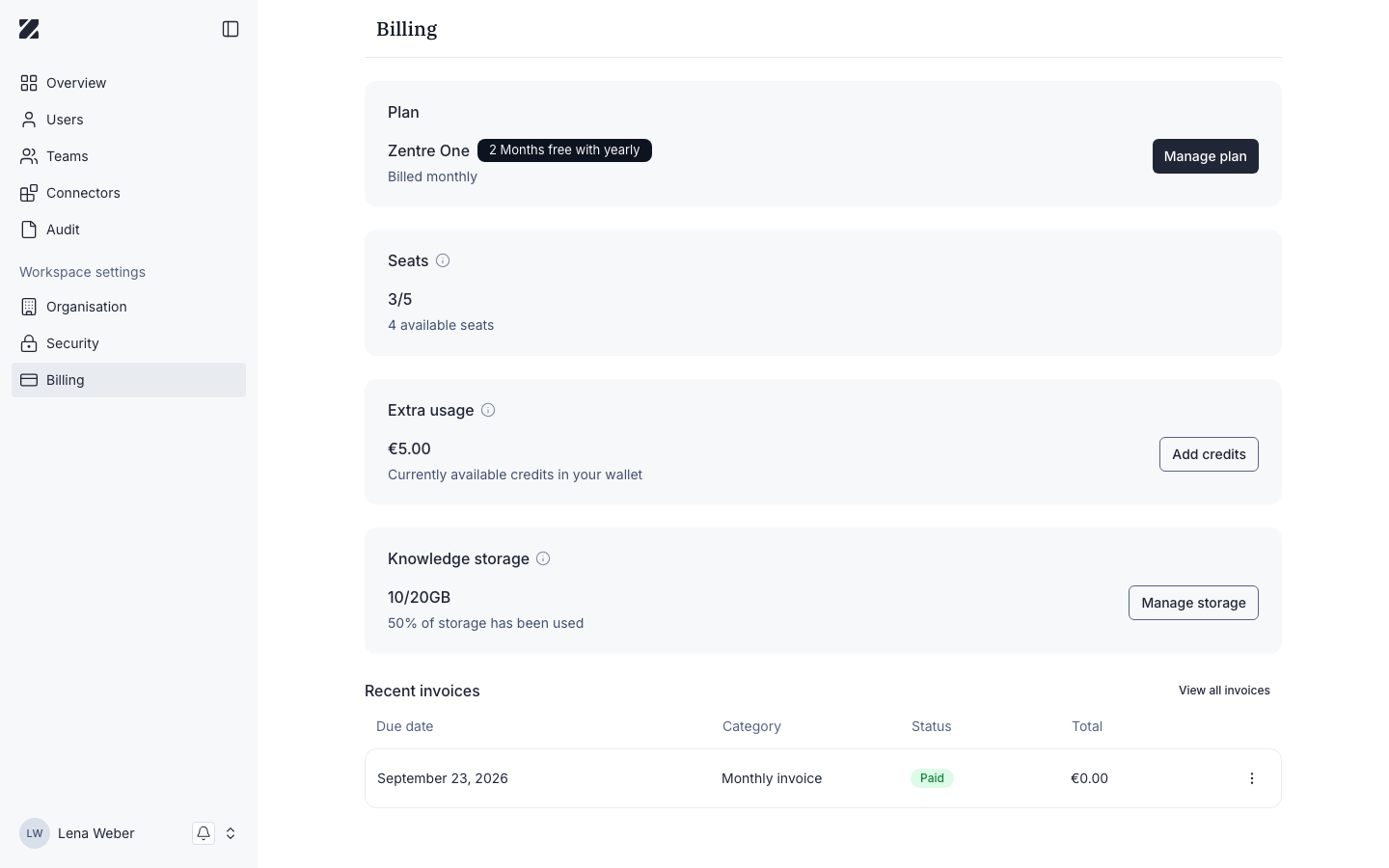
The Plan section shows your current subscription — for example, Zentre One. During a trial it displays a Trial ends in N days badge alongside Monthly billing. Select Subscribe now to move from a trial to a paid subscription.
Seats
The Seats section shows assigned and available seats — for example, 3/5. The available seats tell you how many more people you can add before you need to expand your plan.
Additional usage
The Additional usage section shows a wallet credit balance in euros, used for consumption beyond your plan. Select Add credit to top up the balance — for example, adding 4,99 €.
Knowledge storage
The Knowledge storage section shows used and total storage in GB. Select Manage storage to review or adjust how storage is allocated.
How charges work
Seats, the monthly seat credit, additional usage and Knowledge storage work together. This section explains each of them.
Seats and the seat limit
Subscriptions are managed per user, so each person in your organization takes a seat. The available seats in the Seats section are how many more people you can add. When no seat is free, inviting another user is refused until you expand your plan.
Monthly seat credit
- Credit periods: seat credit follows calendar months, counted from the start of your billing period.
- Yearly plans: the first seat credit is added when the trial converts to a yearly subscription. After that, the monthly seat credit is added from the second month onwards.
- Credit history: seat allowances appear as separate entries in your credit history.
Additional usage and image generation
Usage beyond your plan is paid from the euro credit in the Additional usage section; select Add credit there to top it up.
Each image generated in chat is charged to your organization's balance.
Knowledge storage limits
During the trial, your organization has 0.25 GB of Knowledge storage. When the storage is full, new uploads are refused until files are deleted or storage is added. See Storage on the Knowledge page.
Trial
While your organization is on a trial, the Plan section shows how many days are left. To keep using Zentre AI after the trial ends, a subscription is required: select Subscribe now in the Plan section.
Recent invoices
The Recent invoices table lists your billing history with the following columns:
| Column | Description |
|---|---|
| Due date | When the invoice is or was due. |
| Category | The type of charge. |
| Status | Whether the invoice is paid, due, or overdue. |
| Total | The invoice amount. |
Permissions & roles
- Audience
- Administrators
- Applies to
- Workspace administration
Users with the Billing Owner role open the Billing pages. A Billing Owner without an admin role is taken to Billing when they open any other admin page. See Roles and permissions.
Frequently asked questions
Why can't I invite another user?
All seats are taken. The Seats section shows assigned and available seats; expand your plan to add more.
Who pays for generated images?
Each image generated in chat is charged to your organization's balance.
Related
Was this page helpful?