Support
Audience: All usersApplies to: Your personal account
Your Support page is where you send a request to the Zentre AI team. Choose a category, describe your problem, optionally attach a file, and submit. The Send button is in the top right of the form.
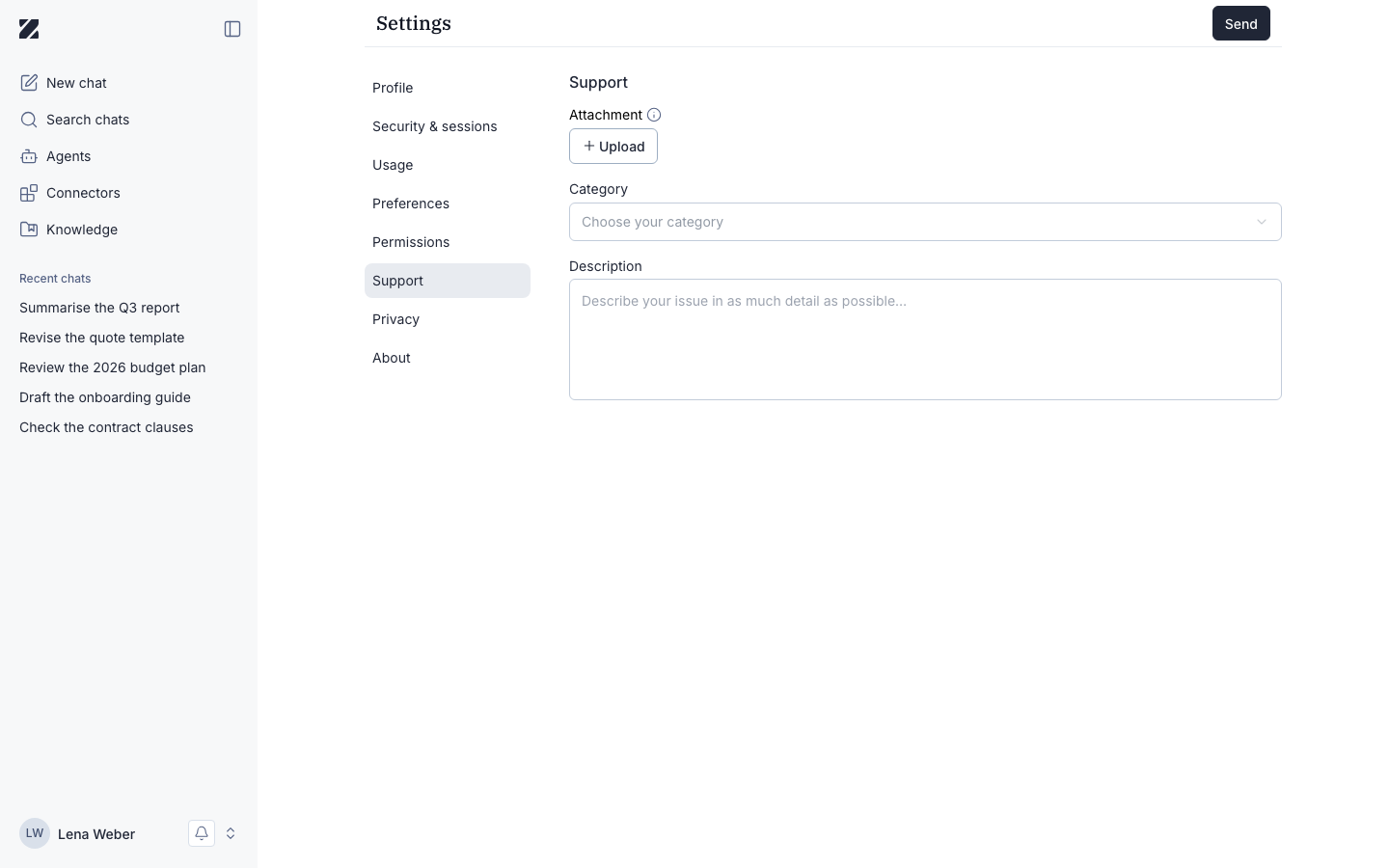
Sending a request
- Open the Category dropdown and pick the option that best matches your issue.
- In Description, describe your problem in as much detail as possible.
- Optionally, select Upload next to Attachment to add a file.
- Click Send in the top right to submit your request.
Field reference
| Field | Required | Editable | Notes |
|---|---|---|---|
| Attachment | Optional | Yes | Optional. Select Upload to add up to 5 files, 5 MB each: PNG, JPEG, GIF, WEBP, PDF, TXT, CSV, JSON or MP4. |
| Category | Required | Yes | Dropdown. Placeholder reads „Select your category“. Choose the option that fits your issue. |
| Description | Required | Yes | Free text. Placeholder reads „Describe your problem in as much detail as possible…“. |
Tips for a faster reply
Pick the Category that fits best, and use Description to include what you expected, what happened, and any steps to reproduce it. An Attachment such as a screenshot often helps the team understand the problem.
Before you write, check Troubleshooting: your message may be listed there, with what to do.
Related
Was this page helpful?