Security & sessions
The Security & sessions page shows every device currently signed in to your Zentre AI account. From here you can end any individual session or sign out of all devices at once. To open it, select Settings from the account menu, then choose the Security & sessions tab.
Your password and single sign-on are managed by your workspace administrator and do not appear on this page.
What you can do here
See active sessions
Review which devices are signed in to your account.
End a session
Sign out a single device from the list.
Sign out everywhere
Sign out of every device, including this one.
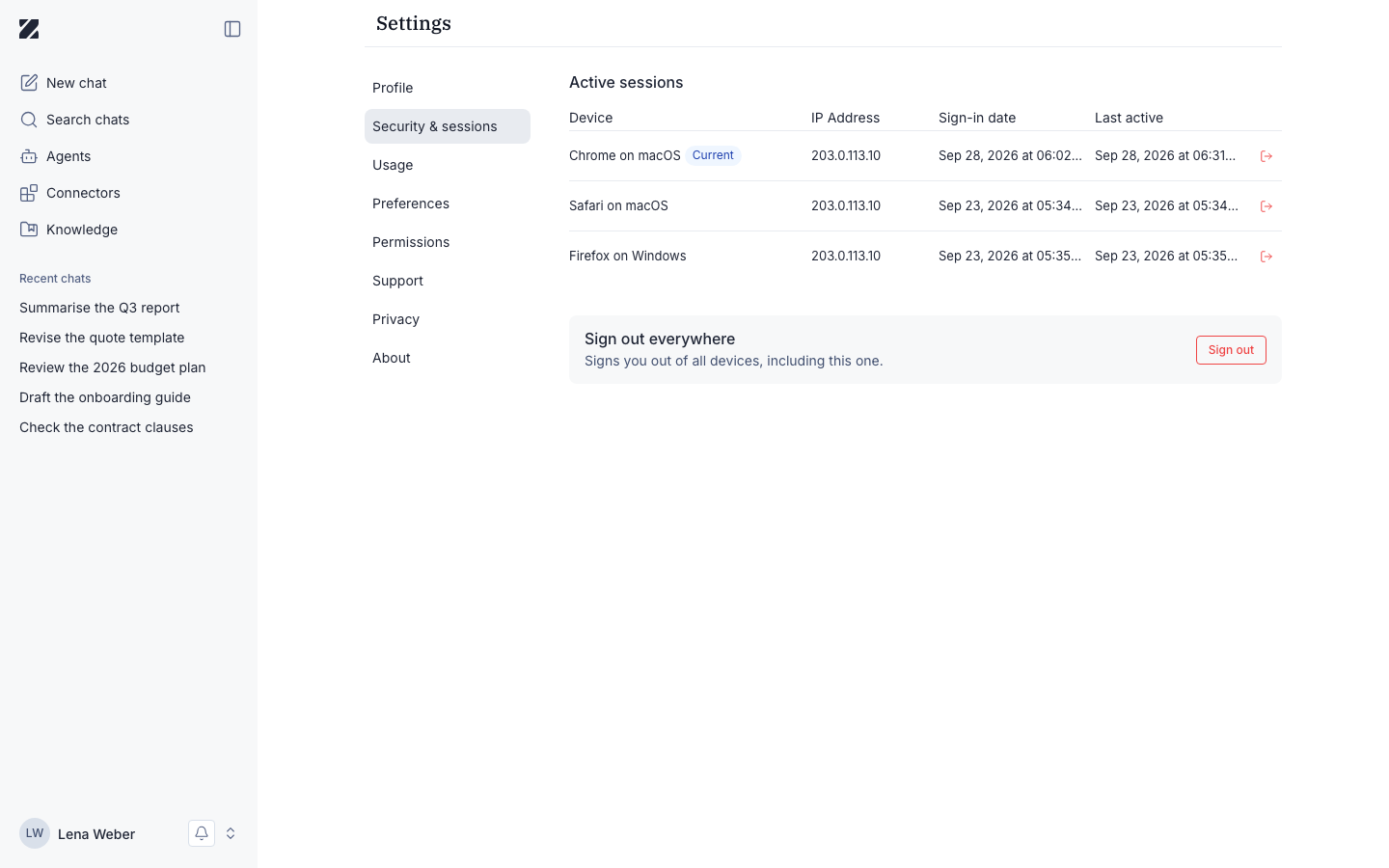
Active sessions
The Active sessions table lists each device signed in to your account, with these columns:
| Column | Description |
|---|---|
| Device | The browser or app used to sign in. |
| IP address | The network address the session connected from. |
| Signed in | When the session started. |
| Last active | When the session was last used. |
The device you are using now shows a Current badge. Each row has a sign-out icon that ends that single session.
End a session
- Open the Security & sessions tab and find the device in the Active sessions table.
- Select the sign-out icon at the end of that row.
- The session ends and the device is removed from the list. That device must sign in again to continue.
Sign out everywhere
The Sign out everywhere card signs you out of all devices at once. The help text reads: Signs you out of all devices, including this one. Select Sign out to continue.
Sign out everywhere ends every session, including the one you are using now. You will need to sign in again on this device afterward.
Permissions & roles
- Audience
- All users
- Applies to
- Your own account only
These controls affect only your own sessions. Password and single sign-on settings are managed by your workspace administrator.
Related
Was this page helpful?